What is a Banner UI Element? Definition & Design Usage
Banners are one of the most widely used components in UI design, but one of the most frequently misapplied. Here’s how to use them correctly.
Banners are one of the most widely used components in UI design, but one of the most frequently misapplied. Used well, they surface important information without interrupting the user's flow. Used poorly, they create visual noise that leads users to ignore them entirely.
This guide covers what banner UI components are, how they work, when to use them, and how to design them effectively across web and mobile interfaces. You’ll also find some visual examples from brands using them well.
What is a banner UI element?
A banner is a UI component that displays a persistent, prominent message, spanning the full width of the screen or its container. Banners are used to communicate important information, warnings, errors, confirmations, or promotional messages. They remain visible until the user dismisses them or until the condition that triggered them is resolved.
Banners are sometimes called callouts, alert bars, notification bars, or info banners, depending on the platform and design system. The terminology varies, but the core behavior is consistent: a banner stays on screen. This is what distinguishes it from a toast notification, which is transient and auto-dismisses.
A call to action (CTA) is optional in a banner; some banners are purely informational, while others require the user to take an action to resolve them.
What are banner notifications used for?
Banners appear across nearly every category of digital product and ecommerce website. The use case determines the banner's urgency, tone, and design treatment.
Promotional information
Promotions and offers are among the most common uses in ecommerce and marketing contexts — things such as discount announcements, free delivery thresholds, and limited-time sales. These banners are typically brand-colored and visually prominent. They may also include a CTA to act on the offer. Urgency is moderate; they don't require immediate resolution but benefit from visibility.
Feature highlights
Banners can be used to draw attention to new functionality or product updates. They're typically low-urgency and informational in tone — the user doesn't need to act, but might benefit from knowing.
Error messages and warnings
A banner is sometimes used to communicate that something has gone wrong or that an action is needed to avoid a problem. These are the highest-urgency banner types and typically use red (error) or amber (warning) color conventions. They should always tell the user what went wrong and what to do about it.
Success and acknowledgment messages
Banners are sometimes displayed to confirm that an action has completed — a form submitted, a file saved, a setting updated.
Note: To be classified as a banner rather than a toast, an acknowledgment message must sit within the content of the page, not above it. A success message that floats above the interface and auto-dismisses is a toast, not a banner.
Informational and system messages
If a website needs to communicate status that affects the user but doesn't require immediate action — like cookie consent notices, scheduled maintenance warnings, connectivity alerts — a banner may be used. These are typically blue or neutral in color.
Coach marks and onboarding instructions
These are used to guide users through new or updated sections of an interface — often in SaaS platforms or apps. They're contextual and temporary; they should be dismissible once the user has completed or acknowledged the guidance.
Banner UI vs. toast vs. modal vs. card: What's the difference?
Banners are frequently confused with similar UI components. However, the distinctions matter; using the wrong component for a message creates the wrong user expectation.
Here are the key differences at a glance, and how the other UI components differ from banners.
| Component | Persistence | Blocking? | Typical use |
|---|---|---|---|
| Banner | Persistent until dismissed or resolved | No | Important info, warnings, errors, promotions |
| Toast | Transient (auto-dismisses) | No | Lightweight feedback (e.g. "Saved successfully") |
| Modal | Persistent until addressed | Yes — blocks underlying UI | High-priority decisions, confirmations, alerts requiring action |
| Card | Persistent (part of page layout) | No | Content display within a grid or list |
Banner vs. toast
The key distinction is persistence and position. Banners are persistent and full-width, remaining on screen until dismissed or resolved.
Toasts are transient; they appear briefly, then disappear automatically. They're appropriate for lightweight feedback that doesn't require action (a file saving, a message sending).
A critical difference: acknowledgment containers that exist within the content of a page are banners; those that float above the interface and auto-dismiss are toasts. The position and behavior together define the component, not just the visual appearance.
Banner vs. modal
Modals interrupt the entire interface and demand immediate attention before the user can continue. Banners are non-blocking; the user can read or ignore them and continue interacting with the page.
If a message is critical enough to halt all interaction, use a modal. If it isn't, use a banner.
Banner vs. card
Cards are content containers, typically organized in a grid or list alongside other cards. They display individual items of content as part of the page structure. Banners exist independently — they draw attention to a specific message that stands apart from the page content and are not organized alongside other components.
Anatomy of a banner UI component

A banner is made up of several constituent parts, though not all of them are required in every instance:
- Container: The outer wrapper, typically full-width. Sits at the top of the page, at the top of a section, or inline within content. Background color usually communicates the banner type (see the color section below).
- Icon (optional): A visual symbol that reinforces the message type. A warning triangle for warnings, an info circle for informational banners, or a check mark for success. Icons provide a second signal beyond color — critical for accessibility.
- Title (optional): A short, bold heading that frames the message at a glance. Not always necessary for simple messages, but useful when the banner body contains more than one sentence.
- Message: The core body copy. Should be concise and direct. Lead with the key information; provide a link or CTA for anything that requires elaboration.
- Action button or link (optional): A CTA that allows the user to resolve the issue, learn more, or act on the message. For error and warning banners, an action is usually necessary. For informational banners, it's optional.
- Close/dismiss button (optional): Allows the user to manually remove the banner. If dismissal is available, the close button must be clearly visible and accessible, not hidden or low-contrast.
Types of banner UI
Banners vary in their structural position, behavior, and specialized application. Understanding the variants helps you choose the right pattern for a given use case.
By width and position
- Full-width banners span the entire screen width. This is the most common and most attention-commanding pattern, and is typically used for global messages that apply to all users or all content on the page.
- Inline or contextual banners appear within a specific section of a page, next to the content they relate to. A form validation error banner above a form, or a data-loading warning within a dashboard panel, are typical examples. They communicate something specific to that part of the interface, not the whole page.
- Floating or sticky banners persist above other UI elements as the user scrolls, ensuring a high-priority message remains visible throughout the session. They’re used for messages that must stay in view regardless of where the user is on the page — like a cookie consent bar that must be actioned before the user continues, or a critical system alert that persists until resolved.
By behavior
- Persistent banners remain on screen until the user explicitly dismisses them or until the condition that triggered them is resolved. This is the defining behavior of a banner.
- Temporary banners disappear after a set time period. This behavior is more toast-like. If a banner auto-dismisses, it should be treated with the same design constraints as a toast; it must be low-urgency, it must not contain critical information the user needs to act on, and it should not be the primary vehicle for an important message.
Specialist variants
- Map interface banners are floating banners commonly found in navigation and mapping applications. They surface contextual instructions (e.g., "Turn left in 200 meters"), alerts, or status updates within a map interface. They're visually distinct from page-level banners and are typically layered above the map rather than positioned in the page flow.
- Stock ticker banners are animated, scrolling banners used in news and finance applications to display live data like prices, headlines, and scores. They're a distinct use case that prioritizes data density and real-time updating over the static message model of most banners.
Banner color and severity: Information banners, warnings, and errors
Color is the primary visual signal that communicates a banner's urgency and type. Most design systems use a shared set of semantic color conventions, with consistency across the system being more important than any specific shade.
Here’s some guidance on which colors to use in different scenarios.
- Blue or neutral: Informational messages with no immediate action required. The classic "info banner", used for system notices, tips, and updates that are worth communicating but not urgent.
- Yellow or amber: Warnings. Action is recommended to avoid a problem, but the situation hasn't yet reached a critical state. Used for low stock warnings, approaching limits, or configuration issues that will cause problems if unresolved.
- Red: Errors. Something has gone wrong, and action is required. The highest-urgency color in the system. Reserved for failures, access problems, and states the user must resolve to continue.
- Green: Success or confirmation. Used to acknowledge a completed action positively — a payment processed, a form submitted, a setting saved.
- Purple or brand color: Less standardized, but seen in some design systems for obstruction states or system-level issues that don't fit neatly into the error/warning model.
- Brand or promotional color: Used for promotional banners; sales, offers, feature launches. Typically, more visually striking than the semantic variants, often using the product's primary brand color rather than a severity indicator.
Important
Never rely on color alone to communicate banner type. Colorblind users may not perceive the distinction between red and green, or between amber and gray. Always pair color with an icon that reinforces the message type, and ensure the copy itself communicates urgency without relying on visual cues.
Banner UI design best practices
- Show one banner at a time. Stacking multiple banners overwhelms users and dilutes the urgency of each. When multiple messages must coexist, prioritize by severity and show the highest-urgency banner. Queue lower-priority messages for display once the primary banner is resolved or dismissed.
- Keep copy short and actionable. Banners are not the place for detailed explanations. Lead with the key message in a single sentence. If more detail is needed, provide a link or CTA to a dedicated page or modal — don't extend the banner body.
- Always provide a path forward. For error and warning banners, especially, telling the user what went wrong is not enough. Tell them what to do next. "Your session has expired" without an action is frustrating; "Your session has expired — sign in again to continue" helps them resolve the situation.
- Use icons to reinforce message type. Don't rely on color alone. An icon adds a second, color-independent signal that is accessible to color-blind users and legible in contexts where color rendering varies (low-brightness screens, printed interfaces, accessibility modes).
- Make dismissal obvious. If a banner can be closed, the close button must be clearly visible and have sufficient tap/click target size. A close button that's low-contrast or positioned ambiguously creates friction and leaves users with a banner they can't remove.
- Position consistently. Top-of-page is the established convention for global banners. Inline banners should be placed immediately adjacent to the relevant content — a form error banner belongs above the form, not at the top of the page. Consistency reduces the cognitive load of interpreting where a banner sits in the information hierarchy.
- Make sticky banners actually sticky. If a banner is designed to remain visible on scroll, implement it correctly — using
position: stickyorposition: fixedas appropriate. A banner that disappears as the user scrolls, then reappears at the top when they scroll back up, creates a jarring experience and defeats the purpose of the sticky pattern. - Don't use banners for permanent content. If a message is always relevant to all users, it's not a notification — it's part of the page structure. Permanent content belongs in headers, footers, or dedicated UI elements. Using a banner for always-visible information devalues the banner's ability to draw attention when something genuinely needs it.
When to use a banner — and when not to
Use a banner when:
- The message is temporary but important enough to persist until resolved or dismissed
- You need to notify users without interrupting their current task (non-blocking)
- The message is contextual and directly relevant to the current page or action
- You're surfacing a promotion, system update, or status that users should be aware of without being forced to act
Avoid a banner when:
- The message requires immediate, undivided attention before the user can continue (use a modal or dialog instead)
- The content is permanent and always relevant (use a dedicated page section instead)
- You already have a banner visible (don't stack multiple banners)
- The message is lightweight, transient feedback for a completed action (use a toast instead)
Mobile banner UI considerations
Mobile introduces specific UX constraints that affect how banners should be designed and written.
Keep copy especially concise for mobile
Banner text that fits on one line on desktop will often wrap to two or three lines on a small screen. Every additional line of wrapped text consumes viewport real estate and increases the visual weight of the component. Write for the shortest reasonable line length.
Icons should remain left-aligned and vertically centered when text wraps
A common implementation issue is icon alignment breaking when the message runs to multiple lines; the icon often ends up top-aligned rather than centered against the text block. Test banner components with multi-line copy on small viewports to ensure they don’t break.
CTA links or action buttons should sit on their own line when the message wraps
Inline links that follow long body copy become visually awkward when the text wraps; the CTA ends up stranded at the start of a short orphan line. Position action elements below the message copy on mobile, not inline within it.
Full-width banners remain full-width on mobile
Max-width constraints that apply to page content on wide desktop viewports (e.g., no wider than 1,200px) do not apply to banners. The container should still span the full screen width.
Use sticky banners sparingly on mobile
A sticky banner on a mobile viewport can consume 15–20% of visible screen space. If a message isn't important enough to justify that real estate cost, it should be dismissible, positioned inline, or communicated through a less persistent mechanism. If it is that important, make it clearly dismissible.
Banner UI examples
Here are some examples of banner UI implementations from leading ecommerce websites on desktop and mobile, to give you a sense of what works well.
Lego
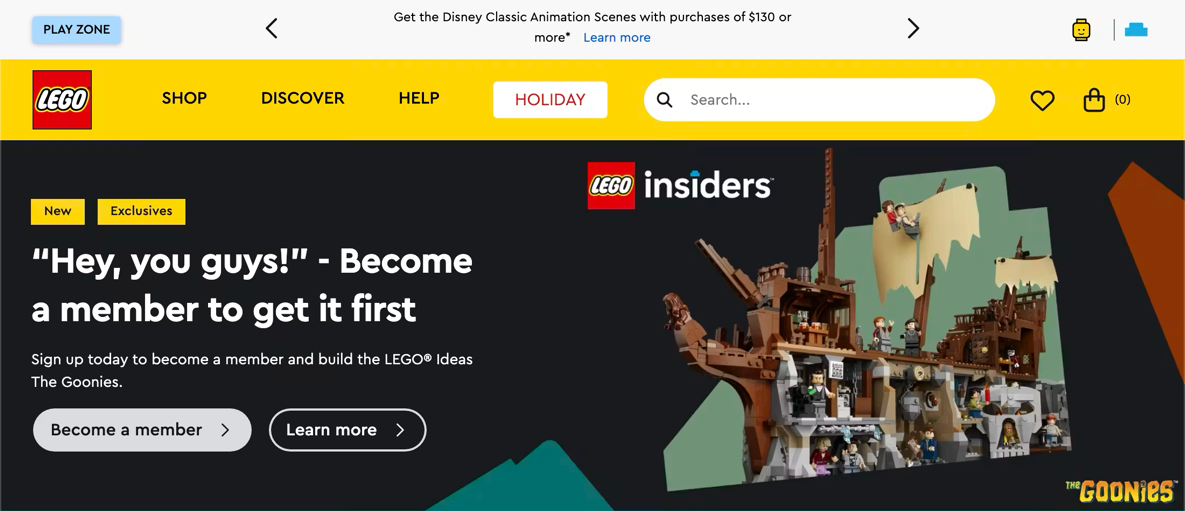
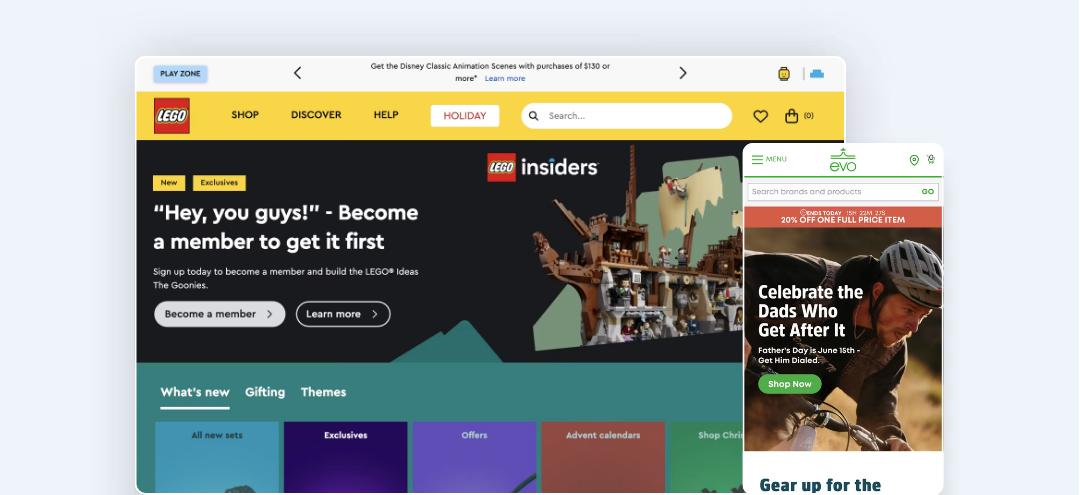
LEGO’s banner in the example above showcases a promotional offer. It includes easy-to-read message copy with an inline CTA where users can find out more information. There are several other banner messages (which users can scroll through using the page controls), but only one is shown at a time, reducing the cognitive load placed on the user.
Microsoft
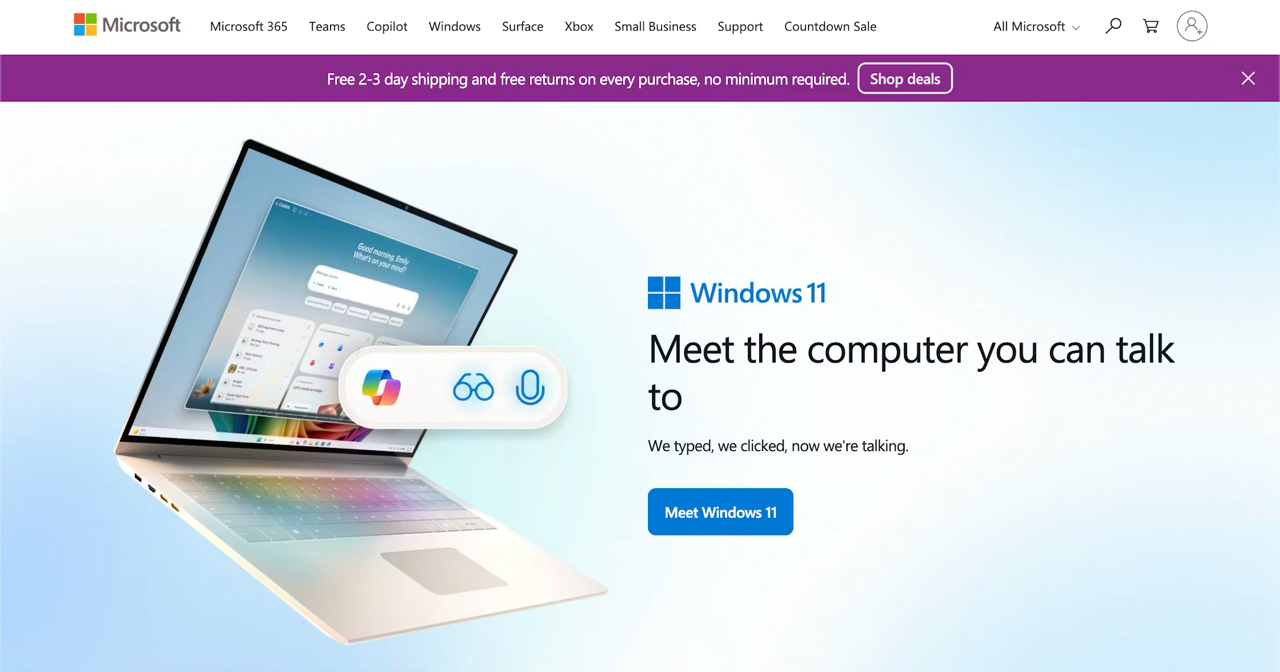
Microsoft’s banner in the example above highlights important delivery and returns information right up front, reassuring users about when they’ll receive their order and that they can return it if necessary.
It’s presented in brand colors and includes a clearly defined CTA button as well as a clear close button so users can dismiss the message if they wish.
REI
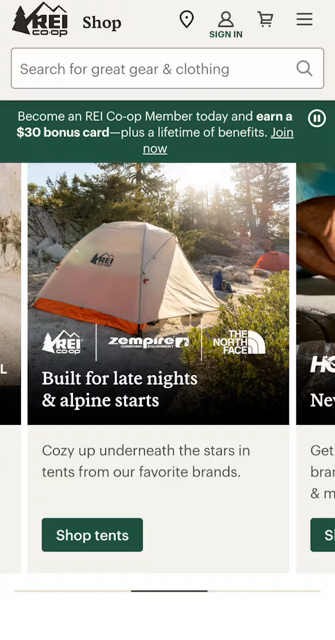
This example shows REI’s mobile site with a banner highlighting the loyalty program available to users. The copy includes relevant details and a link for users to join the program, without taking up too much screen real estate, which is vital for mobile device and app experiences.
Evo

This mobile example from Evo shows a banner highlighting a limited-time offer. It includes relevant copy and icons with a helpful countdown timer that shows users when the promo ends.
Get research-backed best practices for your UX decisions
Looking for more UX design inspiration and evidence-backed insights to help back up your recommendations?
Access our 700+ actionable UX guidelines and performance benchmarks based on 200,000+ hours of user testing across 40+ ecommerce industries.
Banner UI frequently asked questions
What is a banner notification in UI design?
A banner notification is a UI component that displays a message across the full width of a screen or container. A banner stays visible until the user dismisses it or until the condition it describes is resolved. Banners can be used for errors, warnings, informational messages, and promotions.
What is an info banner?
An info banner is a banner component used to communicate neutral, informational content such as system notices, tips, updates, or contextual guidance. It doesn't require immediate user action. Info banners are typically styled in blue or neutral tones to distinguish them from higher-urgency warning and error banners.
What is the difference between a banner and a toast notification?
The key differences are persistence and position. A banner is persistent; it remains on screen until dismissed or resolved, and typically spans the full width of the page or section. A toast notification is transient; it auto-dismisses after a short period and is used for lightweight feedback on a completed action (for example, "Message sent" or "Saved").
If an acknowledgment message sits within the page content, it can be a banner; if it floats above the interface and disappears automatically, it's a toast.
When should I use a banner vs. a modal?
Use a banner when the message is important but non-blocking — the user can read it, ignore it, and continue interacting with the page. Use a modal when the message requires the user's undivided attention before they can continue — for critical decisions, confirmations, or situations where proceeding without acknowledgment would be a problem. The fundamental distinction is whether you need to halt the user's current task or simply inform them while they continue it.
Weekly UX Research, Insights, and Updates
Join 60,000+ UX professionals. Get the latest UX research, practical guides, and Baymard news delivered to your inbox every week.
Loading...