Key Takeaways
- Baymard’s research shows that not providing an overview of applied filters in product lists causes issues for the users
- In particular, this deprives users of immediate confirmation, a streamlined way to remove selections, and essential context for the product list
- Providing an “Applied Filters Overview” if implemented correctly alleviates these issues on both mobile and desktop
When users apply filters to product lists, almost all sites confirm the choices where the filter was originally chosen — for example, by adding a tick mark to a filter option checkbox on a desktop site.
However, during Baymard’s large-scale desktop and mobile UX testing, the lack of an overview of applied filters led to issues, including slowing down the tailoring of the product list and disorientation for some participants.
In fact, 28% of sites across our UX benchmarks don’t display an overview at all.
Based on our UX research findings, this article discusses the issues caused by the lack of “Applied Filters Overviews” and outlines solutions for desktop and mobile, along with implementation considerations.
Observed Desktop and Mobile Issues
Without an overview of applied filters, users are faced with 3 issues:
- No obvious and immediate confirmation that filters have been applied
- Not having a quick way to remove filters
- Not having a context for the product list
Issue 1: No Obvious and Immediate Confirmation that Filters Have Been Applied


On desktop, the absence of an applied filters overview can slow users down when they need to check which filter options they have selected, as seen here on Disney Store. Users must carefully scan the sidebar for signs of applied filters.
Without an applied filters overview, desktop users will need to look to the filtering sidebar to confirm which filter options have been applied.
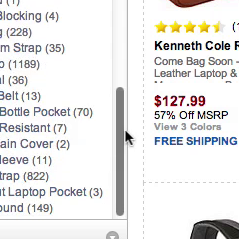
If the chosen filter options are towards the top of the sidebar, users will have little trouble, unless an inline scrolling interface is used and some filter options are hidden.
But if there are multiple filters selected and they are spread throughout a tall sidebar, users would have to scroll through a few viewports to get an overview of the choices they have made.
Furthermore, users don’t always consciously choose all filters that are currently applied.
For example, if users clicked a promoted filter on a home furnishing site’s homepage for “Armchairs under $300”, 3 filters could be automatically applied to the product list they arrive on.
(Note applying filters, rather than sending users to a sub-subcategory, is the right approach.)
If those applied filters aren’t shown in an overview, users may misinterpret the range and type of products the site offers, because the filters that narrow the list aren’t immediately obvious.
On mobile, confirming which filters have been applied can be even more troublesome for users than on desktop because users have to open the filtering interface to do so.
During testing, users opened the filtering interface to confirm their filter selections because they had no visual confirmation in the product list after applying filters.
Issue 2: Not Having a Quick Way to Remove Filters


On Adidas, applied filter titles are added to the header at the top of the product list, but there is no way to remove filters without opening the filter menu (first image). The displayed applied filters are also incomplete; shown here, a size filter has been applied that is not visible within the header (second image).
If there is no overview of applied filters, removing filters that have already been applied becomes more difficult.
Users on desktop sites with a filtering sidebar will be faced with having to scroll through the sidebar to find and deselect filter options that they no longer need.
Meanwhile, mobile users will have to reopen the filtering interface to remove filter choices.
And if they need to remove more than one filter, the process would be quite troublesome on sites where the filter interface is closed after one filter is deselected.
For example, if filter option choices are auto-applied, users would have to make 2 trips to the filter interface to remove 2 filters — as well as having to scroll through the filter interface to locate those options.
The end result is that users will find applying and deselecting filters more labor intensive, and thus many will be dissuaded from trying to get a perfectly fine-tuned product list.
Issue 3: Not Having a Context for the Product List

This product list on Apple has multiple filters applied, but users are forced to scan the filtering sidebar to verify which ones. The absence of an overview of applied filters can be a particular issue for users who are exploring multiple product pages and coming back to the filtered list. If the context of the list isn’t always clear, users could lose track of how the filtered products relate to the broader catalog.


On Northern Tool, it’s not clear from the product list whether any filters have been applied (first image). Only after opening the filter menu (second image) can users see what filters are narrowing the product scope. In practice, this necessity can disorient users and also wastes precious time.
In many ways, an overview of applied filters is just as important as a page title or breadcrumbs that inform users of where they are and what type of product list they are viewing — they provide a summary of their current scope and product list criteria.
Testing showed this kind of product list context to be essential, as users who overlooked even a single applied filter were likely to misinterpret both the type and range of products the site carried.
In practice, users often spend time exploring filtered product lists, scrolling up and down to assess products, and visiting product pages.
After focusing on product features for a while, they could easily forget what filters are active.
And without an overview of what filters are scoping the product list, they could form a mistaken impression of the extent of the product catalog.
For example, a product list with 5 filters applied might contain only a dozen products.
If none were suitable, and users forgot which filters they had applied 3 minutes previously, they could mistakenly assume that the site didn’t have what they needed, while the removal of one filter could expand the selection to include a suitable product.
On desktop, such an issue would be most likely to occur when some of the applied filters are a few viewports down from the top of the page and thus more likely to be forgotten.
On mobile, the issue would be even more likely to occur because the applied filters would be hidden away in the filtering interface, making it easier for the context of the list to be forgotten.
(Note the issue from previous testing rounds — where the filter option disappeared from its original position once selected — did not recur during the latest sessions. 97% of our benchmark sites leave the chosen filter option in its original position — as they should — indicating this is no longer an issue for the vast majority of sites.)
Observed Desktop Solutions
On desktop, there are 3 commonly observed ways to show an overview of applied filters (see guideline #488).
Although testing was inconclusive about which implementation was most effective, what matters is that the overview is easy to see and is not lost among other page elements.
The three design patterns are the following:
- Overview above the product list
- Overview above the filtering sidebar
- Overview below a horizontal filtering toolbar
Desktop Solution 1: Overview Above the Product List

“I wonder if I can clear my selection because I don’t want it. Oh, here we go, let’s get rid of the colors.” This test participant on Bed Bath & Beyond was pleased to be able to remove some of her applied filters by clicking on them in the overview above the product list. Being able to clear filters in this way saves users the time needed to scroll down through the left sidebar to do so.
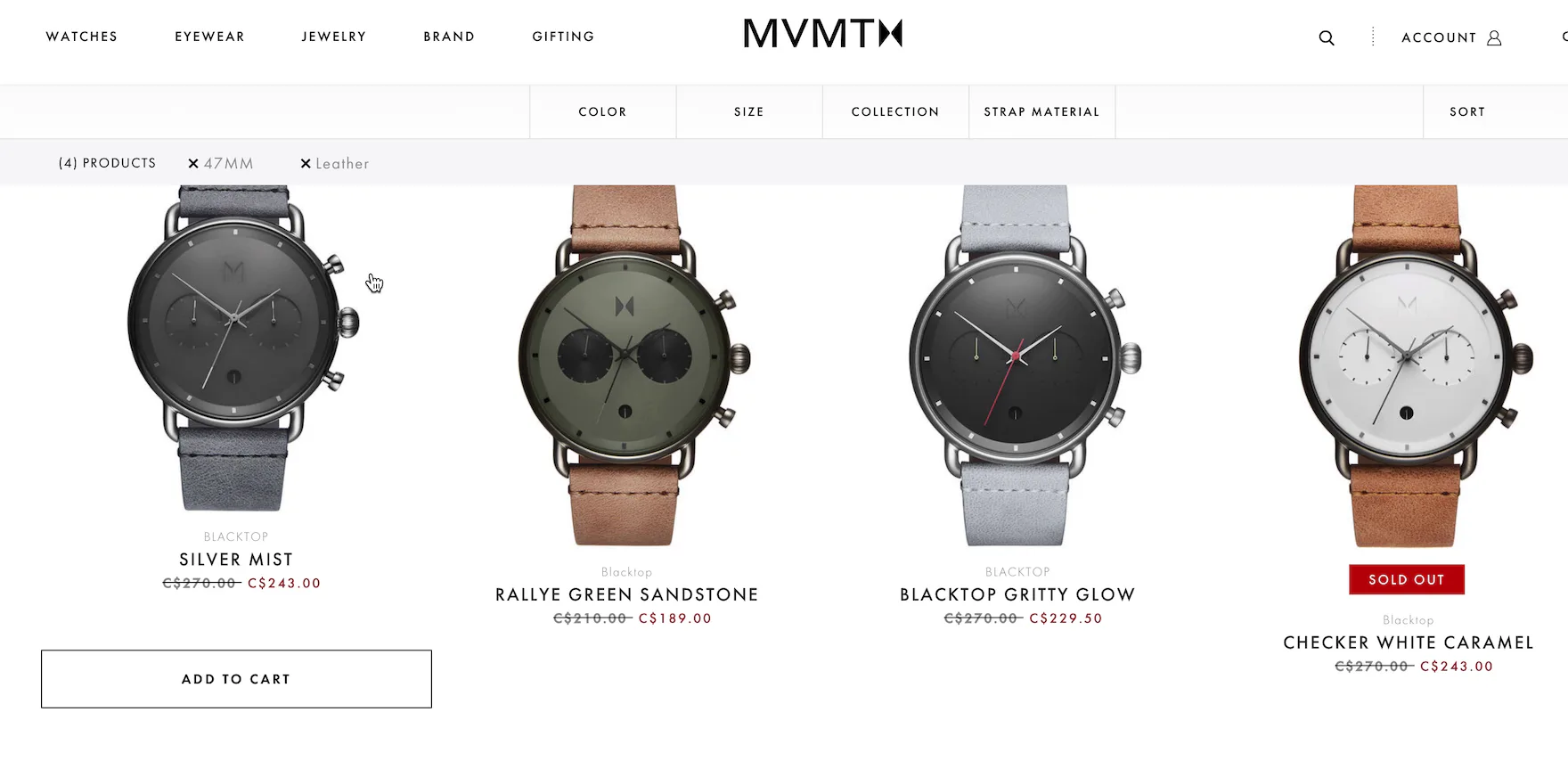
“I like the fact that it indicates what filters I’ve selected and based on those filters how many results come up.” An overview of applied filters above the product list (and below the horizontal filtering toolbar) enables users such as this participant on MVMT to have a sense of control over tailoring the product list.
With the applied filters overview above the product list, there is typically plenty of horizontal space to devote to them.
The applied filter option text can be relatively large, there’s space for a descriptive header to bring attention to the filters, and each filter can have large hit areas for easy deselection.
When more filters are added to the overview than will fit on one row, many sites simply add another row to accommodate them.
However, these extra rows can push the product list down the viewport — potentially obscuring part or all of the first row of products in the list.
One way around this issue would be to truncate the second and subsequent rows.
Desktop Solution 2: Overview Above the Filtering Sidebar

The applied filters above the sidebar on Curry’s PC World are very prominent, with a large font size and a background color that helps draw attention. Note how each line in the overview contains multiple filters, reducing the vertical space occupied by the overview and pushing down the filtering interface less than if each applied filter was on a separate line.
Placing applied filters above the filtering sidebar means that all filtering features are in the same area of the page.
This location is prominent and most users will quickly find the applied filters if they need to review or remove them.
This placement has associated drawbacks, however.
Since filtering sidebars are generally fixed width, when many filters are applied they are often stacked vertically.
Depending on the width of the sidebar and the number of applied filters, stacking the filters could push the filtering interface downwards, so that fewer filter types and options are visible in the first viewport.
Desktop Solution 3: Overview Below a Horizontal Filtering Sidebar

John Lewis uses a horizontal filtering toolbar, common on apparel sites, and applied filters are placed just below it. This implementation of filtering has the advantage of concentrating all filtering features in one area of the page for easy access.
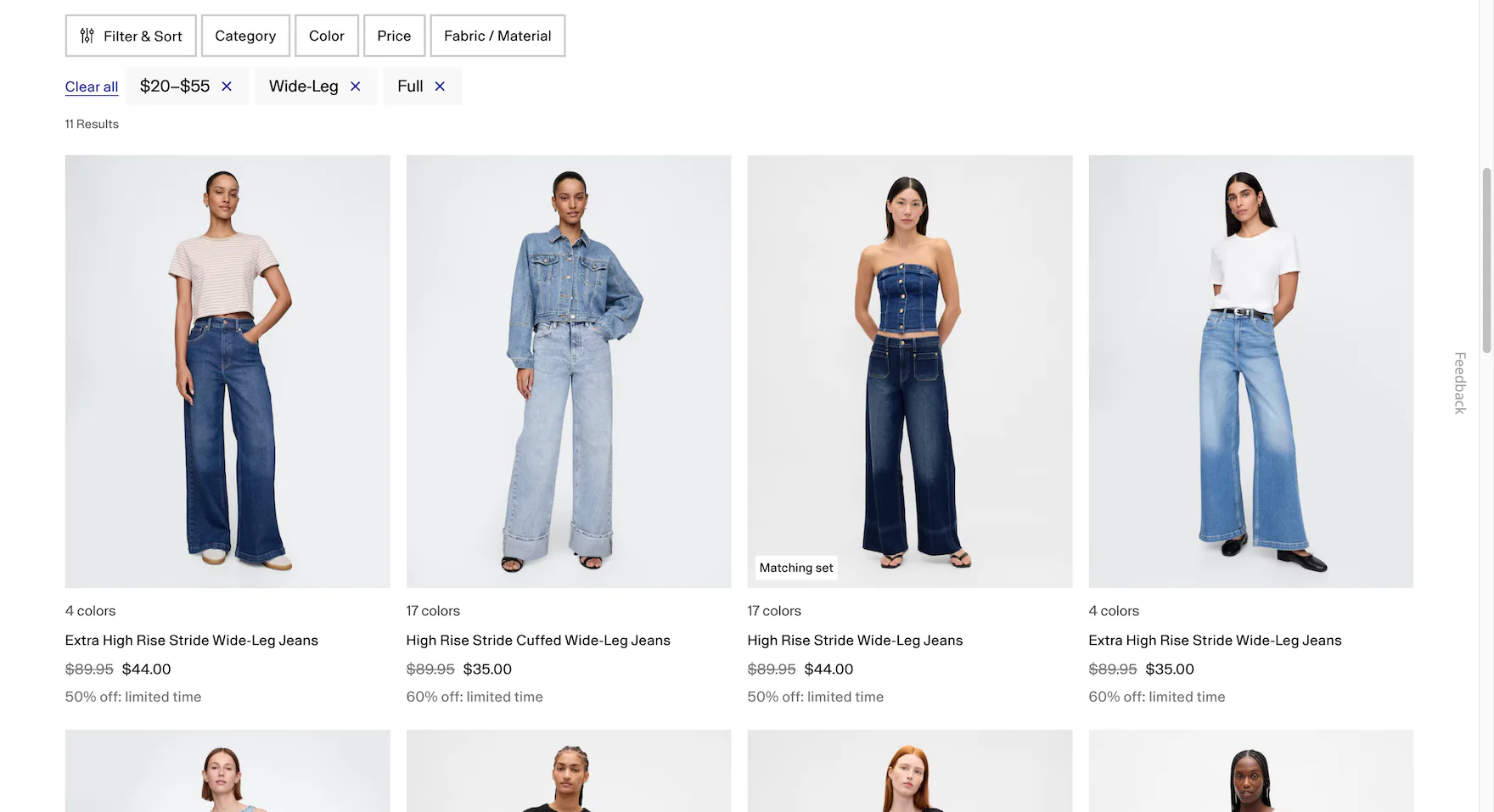
Likewise, GAP’s applied filters are placed below the horizontal filtering toolbar above the product list. The applied filters have a clear “x” to make deselection easy, and to the left, the option to “Clear all”.
Horizontal filtering bars, often found on apparel sites, are an alternative to filtering sidebars on desktop and can be used successfully on sites that have only a few filter types.
Applied filters work well with horizontal filtering toolbars because all filtering features can be concentrated in one place above the product list, allowing users to apply and deselect filters in a single area of the page.
When more filters are applied than will fit in one row, some sites add more rows to accommodate the extra filters, thereby pushing the product list down (as with the “Above the product list” implementation).
This would cause users to have to scroll down in order to assess the top row of items for suitability.
Although not all users will add enough filters to warrant a second row in the overview, one way to resolve this issue would be to truncate the second and subsequent rows.
Users could click on the truncation indicator to reveal the hidden rows if they need to.
While most sites with horizontal filtering toolbars align applied filters horizontally, some sites vertically stack the applied filters.
With vertically stacked applied filters, each added filter would push down the product list, while with horizontally arranged filters this would happen less often as an extra 4–8 filters would need to be applied to add a row to the applied filters overview.
Observed Mobile Solutions
On mobile, because of the size of the viewport, only a few applied filters will fit in a single line.
If users choose more filters than will fit on one line, sites with applied filters overviews have the choice of displaying the filters either as a horizontally scrolling list or in vertically stacked rows.
Whichever is chosen — testing showed either can work well for users — getting the implementation details right is key to making sure that users see all filters without a negative impact on the user experience (see guideline #2572).
Mobile Solution 1: Overview in a Horizontally Scrolling List


When users apply multiple filters on Wayfair’s mobile site, they are displayed in a scrolling horizontal list. Notice how the last filter on the initial view is cut off by the side of the viewport (first image), providing a visual cue to swipe further (second image).
One approach to displaying multiple applied filters on mobile is to use a horizontal scrolling list.
While this design can work well — as it takes advantage of the natural aptitude mobile users have for horizontally scrolling content — care must be taken to ensure that users know that some applied filters can only be seen if the list is scrolled.
When there are too many applied filters to display in a single row, truncating the rightmost applied filter can be an effective solution — but only if users notice the truncation.
For example, if only a small slice of the last visible filter is shown, then it is likely to be overlooked.
But if half or more of the applied filter is shown, it will be clear that more are visible if users scroll to the right.
Another way to encourage users to scroll to see more applied filters is by fading the edge of the right-most filter — another indication that more are available to the right.

On Amazon’s mobile app, the addition of the number of applied filters (4) in the summary not only clarifies to users how many filters are active, but also indicates that the fourth filter can be viewed by scrolling. In addition, the truncation of the third applied filter is a clear indication to users that they need to scroll horizontally to view more filters
A third way to signal to users that more filters can be seen in horizontally scrolling lists is to state the number of filters that have been applied in text just above the list.
For example, a text header “4 Filters Applied” would indicate clearly that the applied filters visible by default are not the only ones.
This knowledge would in turn prompt users to scroll the horizontal list to see the full set of applied filters.
Yet we also observe users frequently skip over text, so this should only be used in conjunction with some of the other implementations described above.
Combining these three ways of indicating to users that there are more applied filters that can be revealed by scrolling is the ideal way of presenting an applied filters overview on mobile.
Mobile Solution 2: Overview in a Stacked List

Home Depot’s approach to displaying multiple applied filters in an overview on mobile is to stack them in rows. Users will be in no doubt about what filters are applied, but products will be pushed further down the page when many filters are applied.

Applied filters are also stacked on John Lewis, allowing users to see at a glance what filtering choices define the current list.
Another approach to displaying applied filters on mobile is to simply spread the filters over as many rows as are needed to show them all.
The advantage of this method is that users would be able to see all applied filters without having to scroll horizontally.
But there is a danger that the rows of filters, combined with other elements at the top of the product list, like the search bar, promoted filters, and the sorting and filtering buttons, could push the list items out of the viewport.
Although not observed during testing, some users may feel disoriented when the first list item is out of the viewport, and having to scroll to see list items may be troublesome.
A variation of this design would be to show 1 or 2 rows of applied filters and truncate any further rows.
Tapping a “See All Applied Filters” button would reveal the hidden rows.
Not all users need to see all of the applied filters, and vertical truncation of the list would avoid needless clutter at the top of the product list without obscuring the fact that there are more filters applied.
This method would also lessen the amount by which the product list is pushed down the page.
Additional Considerations for Applied Filters Overviews on Desktop and Mobile
Avoid Only Indicating the Number of Applied Filters

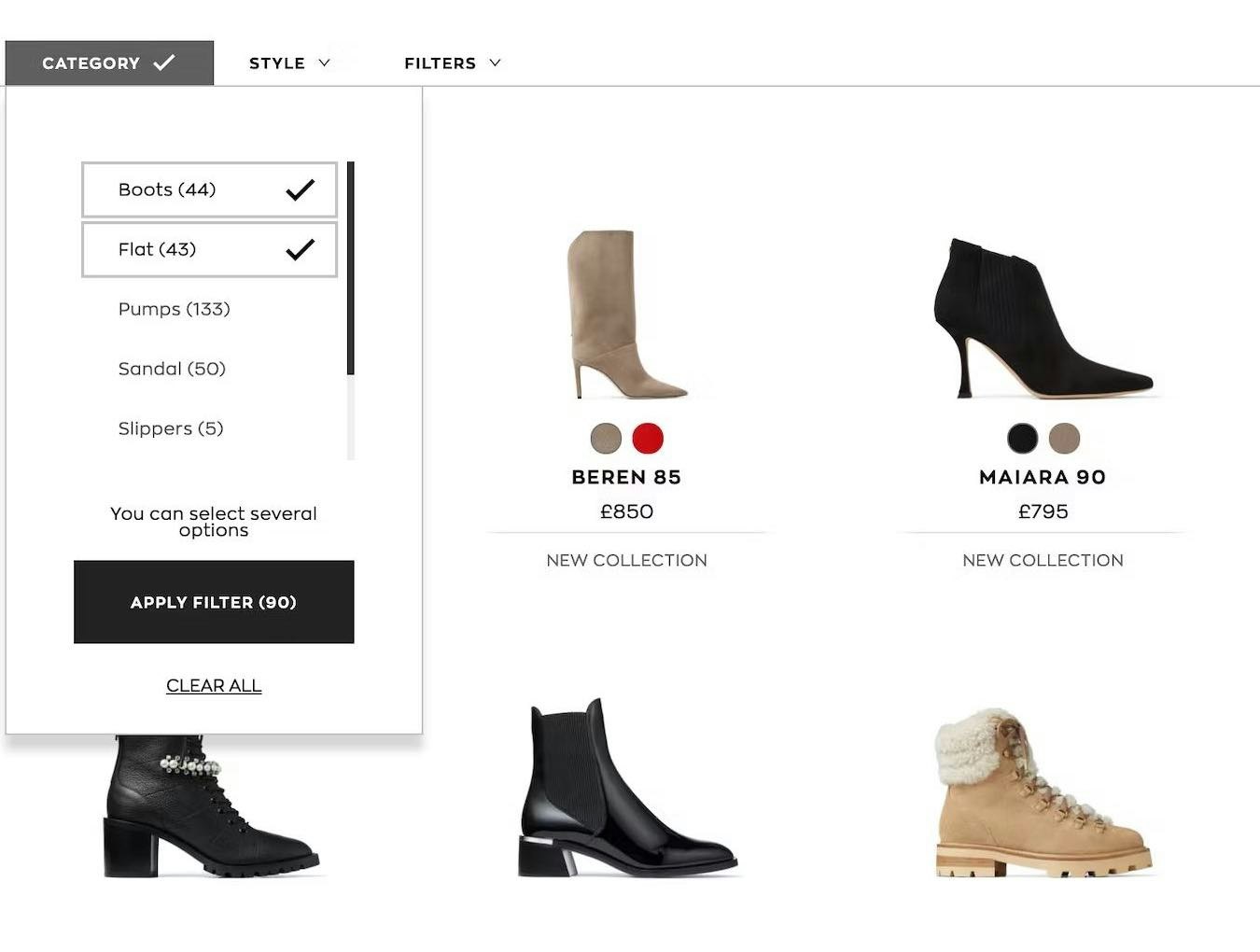
Although Williams-Sonoma shows the number of applied filters (“Filter (3)”), users would need to open the filtering interface to see what filter options are selected and to remove any that were not needed.
One design implementation that didn’t perform well during testing was when sites only indicated the number of applied filters, without actually displaying those filters.
When sites just show the number of filters that have been applied but not the filter options selected, there’s no applied filters overview.
This means that, as discussed above, users will have to open the filtering interface on mobile — and on desktop if a horizontal filtering bar is used — to confirm what filters are applied and to remove any that are no longer needed.
In addition, users have no visual reminder of the context of the product list.
Showing the Filter Type

On Overstock’s desktop site, since there is plenty of space to accommodate applied filters, adding the filter type has minimal negative impact. Note how the applied filters are shown on different rows rather than truncated.
Some sites display the filter type in addition to the selected filter option in the overview; for example, “Color: Blue” or “Price: $100.00 to $200.00”.
Including the filter type alongside the option increases the size of the applied filter in the overview, which can lead to either more space being taken up by the overview or more filters being hidden by default on mobile devices.
Sometimes, however, the filter option only makes sense with the added context of the filter type.
For example, a filter option “90cm” could refer to either the width or the height of a product, while “Width: 90cm” in an “Applied Filter Overview” is unambiguous.
Other filter types won’t necessarily need to be stated in the applied filters overview — for example, color options like “Red” or material options like “Leather” are unlikely to need any further clarification.
Therefore, sites should consider whether or not to include the filter type with the filter option in an applied filters overview.
However, displaying filter types for some options and not for others would not only pose a technical challenge for the site, but also could make it harder for users to understand the structure of the overview.
A mixture of differently structured applied filters, some with types and others without, would look inconsistent and could be hard to interpret.
Thus, sites have to decide whether adding filter types in “Applied Filter Overviews” would benefit the majority of users, taking into account the types of products offered.

On apparel sites like American Eagle, showing filter types in applied filters overviews is often unnecessary. Filter options like “Skinny” and “Blue” will make sense to users without the associated filter types “Fit” and “Color”. Note also how the absence of filter types means that the applied filters are comparatively narrow, with 3 fitting comfortably on each line.
Apparel sites, for example, with fewer filter types that are largely self-explanatory (e.g., “Color”, “Size”, “Fit”, and “Price”), might choose to omit filter types from “Applied Filter Overviews”.

B&H Photo includes filter types (e.g., “Maximum Flight Time”) above the filter options using small gray type (a “floating label” implementation). This method allows users to focus on the options, and doesn’t increase the width of the individual applied filters, meaning that more will be visible without scrolling.
On the other hand, spec-heavy sites such as Home & Hardware sites that offer products for which the filter type would be needed (e.g., “Width” and “Height” for appliances, or “Power Input” and “Power Output” for tools) might need to include the filter types.
As a rule of thumb, spec-heavy sites should include the filter type along with the filter option.
Visually driven sites can most likely only provide the applied filter option.
Sites that sell a mix of the two can choose to simply always show the filter type, or adjust what’s shown dynamically based on the product list being viewed, or the predominant types of products displayed (spec-heavy or visually driven) in search results.
If the filter type is necessary for users to interpret the filter option correctly, consider placing it above the option rather than alongside it, so that the combination is as narrow as possible.
Also, the filter type should appear secondary to the option by use of appropriate styling.
Most users scanning the list of applied filters will be focused on the options, and should not be distracted by the filter types that are there only to remove doubt about the meaning of the filter option.
Display Applied Filters in an Overview

The applied filters on REI are summarized in an overview above the product list, making it easy for users to get quick confirmation that filters have been applied, to remove filters that are no longer needed, and understand the context of the product list.
To summarize, without an overview of applied filters, users are faced with 3 issues:
- There is no obvious and immediate confirmation that filters have been applied
- There’s no quick way to remove filters
- There’s no context for the product list
To help users tailor product lists to find suitable products, ecommerce sites should provide an “Applied Filters Overview” on both desktop and mobile.
On desktop, applied filters can be placed above the product list, above the filtering sidebar, or below a horizontal filtering toolbar.
On mobile, applied filters can be placed in a horizontally scrolling list above the product list, with clear truncation of nonvisible, applied filters.
Alternatively, applied filters can be stacked in rows above the product list on mobile.
For both desktop and mobile, avoid simply displaying the number of applied filters, and consider showing the filter type in addition to the filter options.
With 72% of our desktop benchmark sites providing an overview of applied filters, many users will come to rely on seeing these overviews and benefitting from them.
To avoid being at a competitive disadvantage, sites should therefore always display applied filters in an overview.
This article presents the research findings from just a few of the 700+ UX guidelines in Baymard – get full access to learn how to create a “State of the Art” ecommerce user experience.
If you want to know how your desktop site, mobile site, or app performs and compares, then learn more about getting Baymard to conduct a UX Audit of your site or app.