Key Takeaways
- Most ecommerce sites across desktop, mobile, and apps have serious issues supporting users’ search
- Our large-scale search testing of the top ecommerce sites indicates that without decent support for search, users will have difficulty finding the products they seek — if they find them at all
- Improving ecommerce Search UX can set your site apart from competitors and help ensure users are able to find what they need
Key Stats
- 10,000+ performance ratings for 2026 ecommerce Search UX
- 170+ benchmarked sites and apps
- 56% of sites fail to adequately support users’ search needs
Baymard’s latest ecommerce UX Search benchmark reveals that most sites fail to adequately support Search UX.
This is despite the fact that, over many rounds of large-scale ecommerce UX testing, roughly half of participants turn to search as their preferred product-finding strategy (with the other half using the main navigation).
Poor-performing ecommerce Search leads to frustrating search experiences, time wasted refining queries, and abandonments as users are unable to find products they’re looking for.
In this article, we’ll cover the current state of Search UX for 2026 and offer 8 best practices to improve your site’s Search UX, based on our large-scale UX research findings.
The Current State of Ecommerce Search
For this analysis, we’ve summarized 10,000+ usability scores across the 5 Search topics that collectively constitute users’ ecommerce search experience.
Additionally, we’ve plotted the 170+ benchmarked sites’ and apps’ Search UX performance in the scatterplot above.
Each dot above, therefore, represents the summarized weighted UX performance of one site, across the 6–10 guidelines within that respective topic.
Only 44% of desktop and mobile sites and apps have a “decent” or “good” Search UX performance
The high-level benchmark results show that 46% of desktop, 58% of mobile, and 64% of app ecommerce sites have an overall “mediocre or worse” performance for their Search UX.
The implications of this are sobering: whether on a desktop site, mobile site, or app, most users will have, at best, a “mediocre” experience while trying to use search to find products.
While a single severe UX issue may cause a site abandonment on its own, it’s more likely that the accumulation of experiencing medium-level UX issues across multiple searches will be the reason a user leaves the site.
On the other end of the spectrum, it’s worth noting that there are 4 desktop sites and 1 mobile site with “perfect” performances — showing that it is possible to have a search experience that not only meets but exceeds user expectations.
8 Search “Query Types” UX Best Practices
These best practices were developed from our large-scale user testing of the ecommerce Search experience on desktop sites, mobile sites, and apps.
Note: In this article we’re focusing on Search “Query Types”, which are fundamental to how users are able to use the Search feature to find products.
(For more on ecommerce Search UX, see our full list of Search articles.)
1) “Exact” Searches (12% of Sites Have Issues)
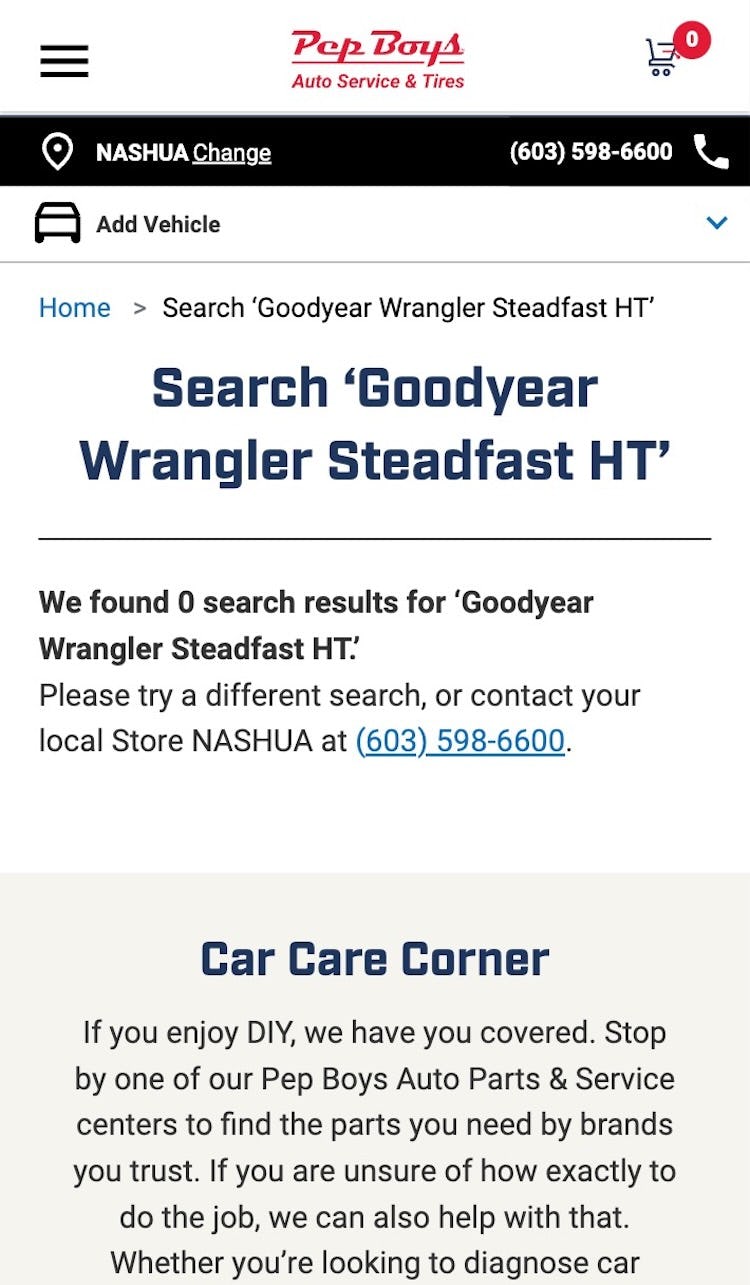
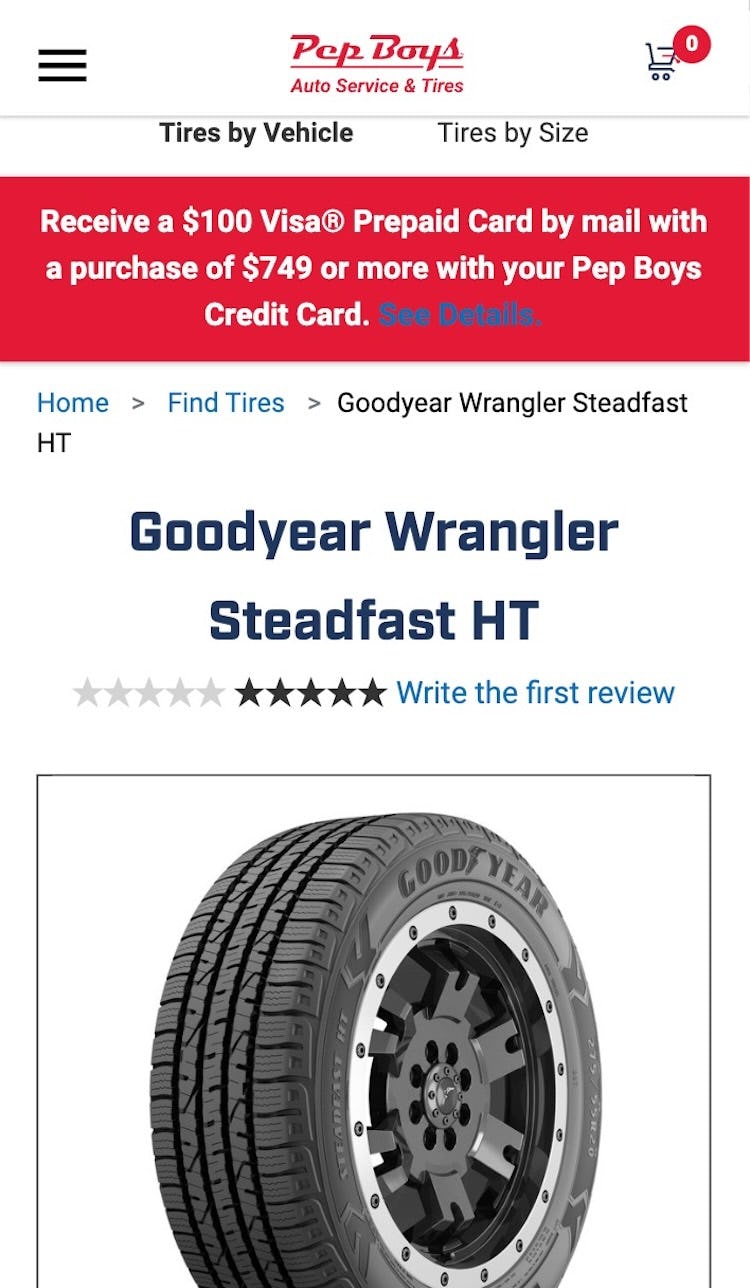
At Pep Boys, an “Exact” search for any specific tire on the site is unsuccessful (first image), even though the products are sold at the site and findable via browsing (second image). This behavior is highly problematic for all the users who either directly type product names or copy-paste product names or model numbers from external sites (e.g., product review or manufacturer sites).
When users know the exact product they seek, they will typically enter the product’s title or model number exactly as is into the search field, such as “Keurig K45 Elite” (a coffee maker).
Moreover, during testing, participants were often observed to copy-paste product titles from external sites into the search field to ensure their accuracy (see guideline #333).
“Exact” searches are typically the easiest to support technically and yet a third of sites tested performed mediocre or worse.
While this may at first seem like an easy case of keyword matching against those two product attributes, the search engine must be a little smarter than that.
Rather, a few conditions must be taken into account — refinements that will take the “Exact” search query implementation from acceptable to great.
For instance, good handling of phonetic misspellings is crucial since the user may only have heard the product’s name being spoken and not know how to spell it (e.g., “Keurick 45 Elite”).
Furthermore, some products have alternative titles, such as Nestlé Quik vs. Nesquik or AT&T Wireless vs. Cingular Wireless vs. AT&T Mobility — all of which should invoke their respective products.
This is particularly important for global ecommerce sites where product naming may be localized.
Acquiring all of these local and alternate spellings can prove quite the challenge and vendors may not necessarily need to input this data on their own.
Partnering with relevant industry databases can therefore be a good way to acquire this product information — especially if they are public and users are copy-pasting from them in the first place.
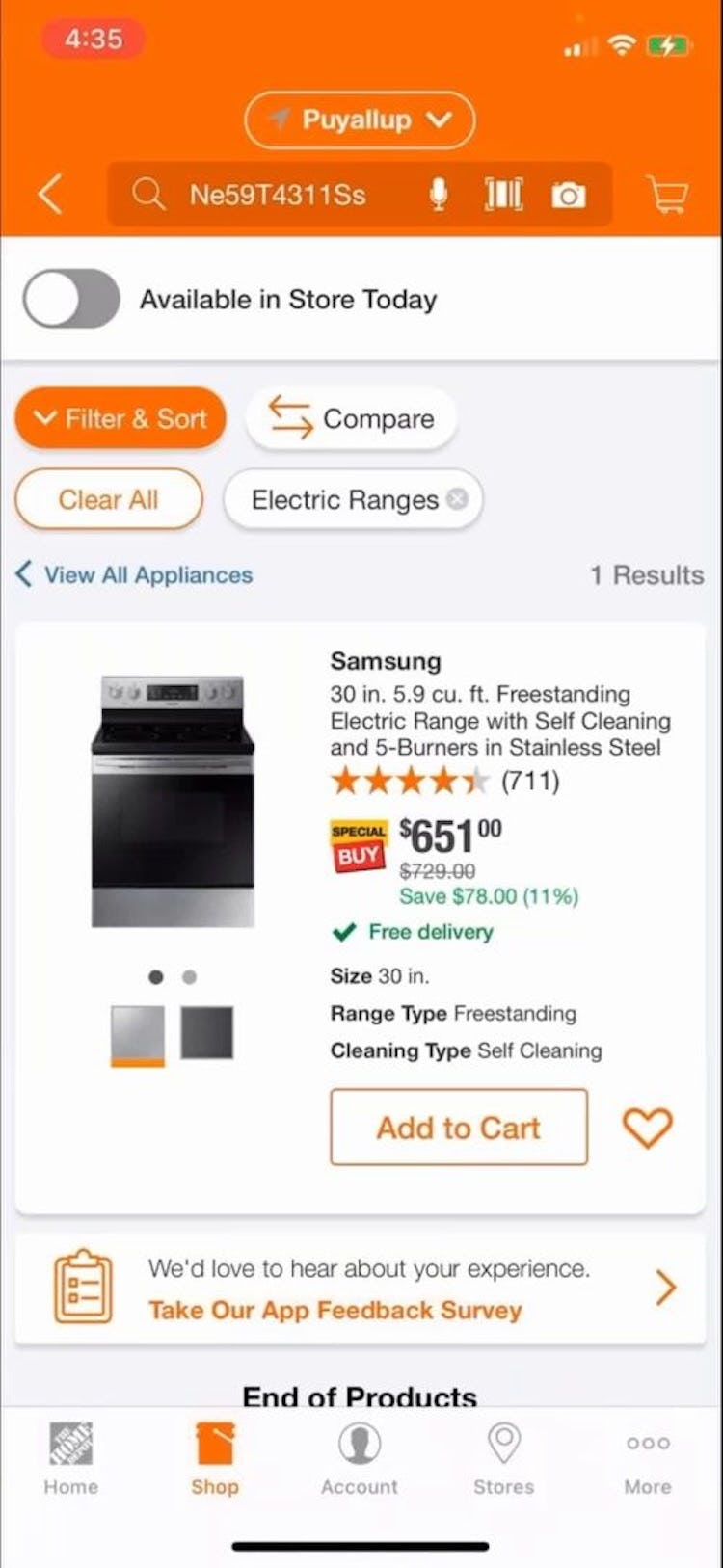
“Let’s see if I can search my model number…I can, and there we are, so good.” This participant was grateful that he could search by SKU (model number) in the Home Depot app. Allowing users to search by SKU ensures that they can quickly locate a specific model of interest.
Support for “Exact” searches proved crucial during testing, as we observed participants were quick to conclude that a site didn’t carry the product if it failed to show up when they entered a specific model name or number (as opposed to more open-ended queries, such as “Use Case” searches).
2) “Product Type” Searches (20% of Sites Have Issues)
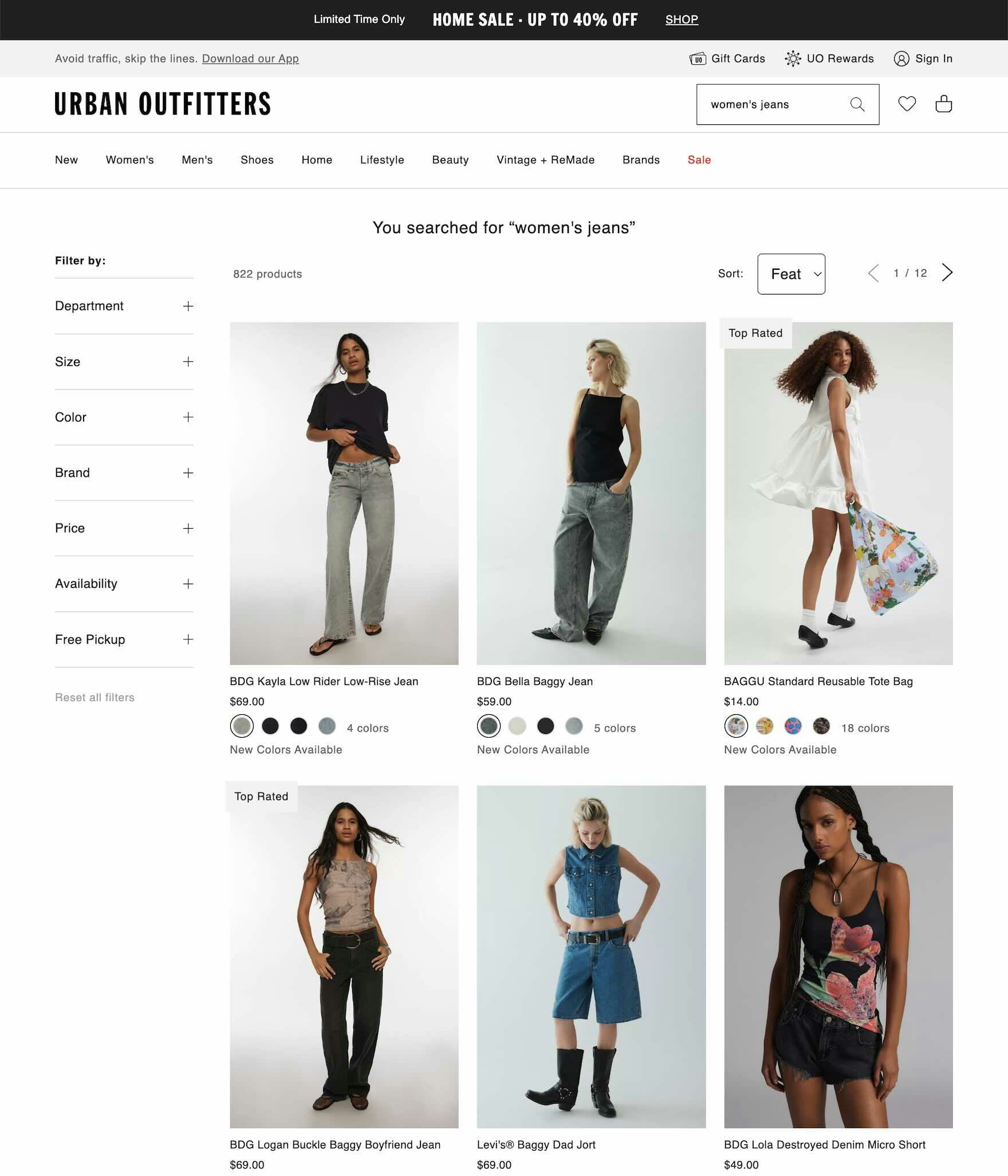
At Urban Outfitters, a search for “women’s jeans” results in 822 products (including irrelevant items) with no visible category suggestions, which means extra work and time for users to find suitable items in the list.
When users aren’t looking for a specific product, but rather a type of product, they will rely on “Product Type” searches that describe a category or subcategory of products (e.g., “sandals” or “laptops”).
These “Product Type” queries are generally an attempt by the user to quickly access a category on the site — either because it’s more convenient to search for it or because they are having difficulties finding the category via the main menu (see guideline #2730).
When the site can be sure of a 1:1 match with a “Product Type” query and an existing category or subcategory, it’s worth autodirecting the user to the relevant matching intermediary category page, if one exists.
If returning a search results page instead, help users find the sought-after product type by promoting relevant categories that mirror the category product list, allowing them to drill-down quickly to narrow the list.
Also, note that it is important to support “Product Type” searches by always returning relevant results regardless of whether or not the searched-for product type exists as a category on the site.
In testing, participants often simply assume that poor or limited results were the site’s full selection for such products and didn’t bother to continue browsing.
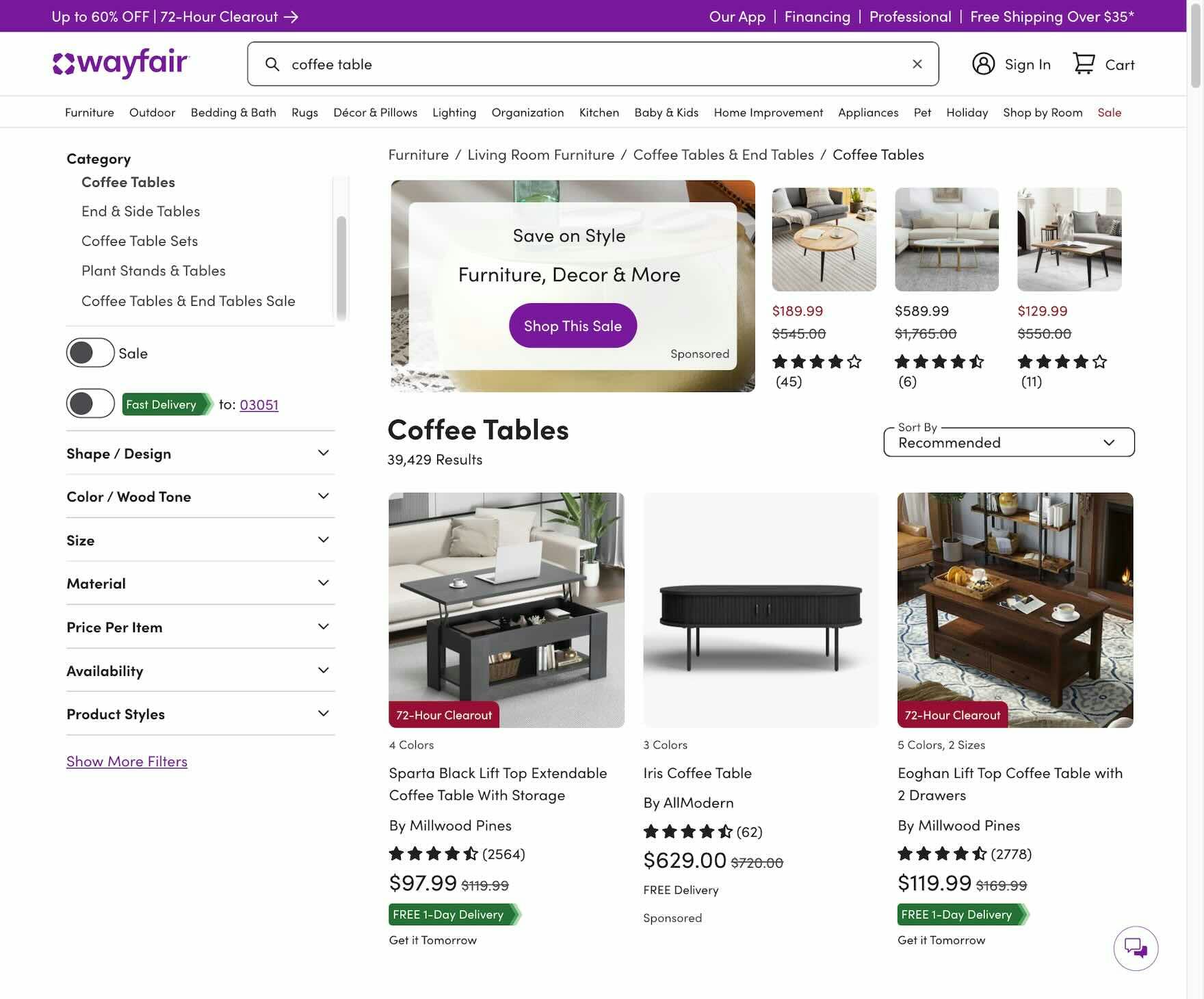
When users search for an existing category at Wayfair, such as “coffee table”, the site autodirects to the category page, making available the filters that are meaningful for this product type, similar categories to explore, and the breadcrumb navigation. It also shows only coffee tables in the product list, avoiding irrelevant results like other items containing the word “coffee”.
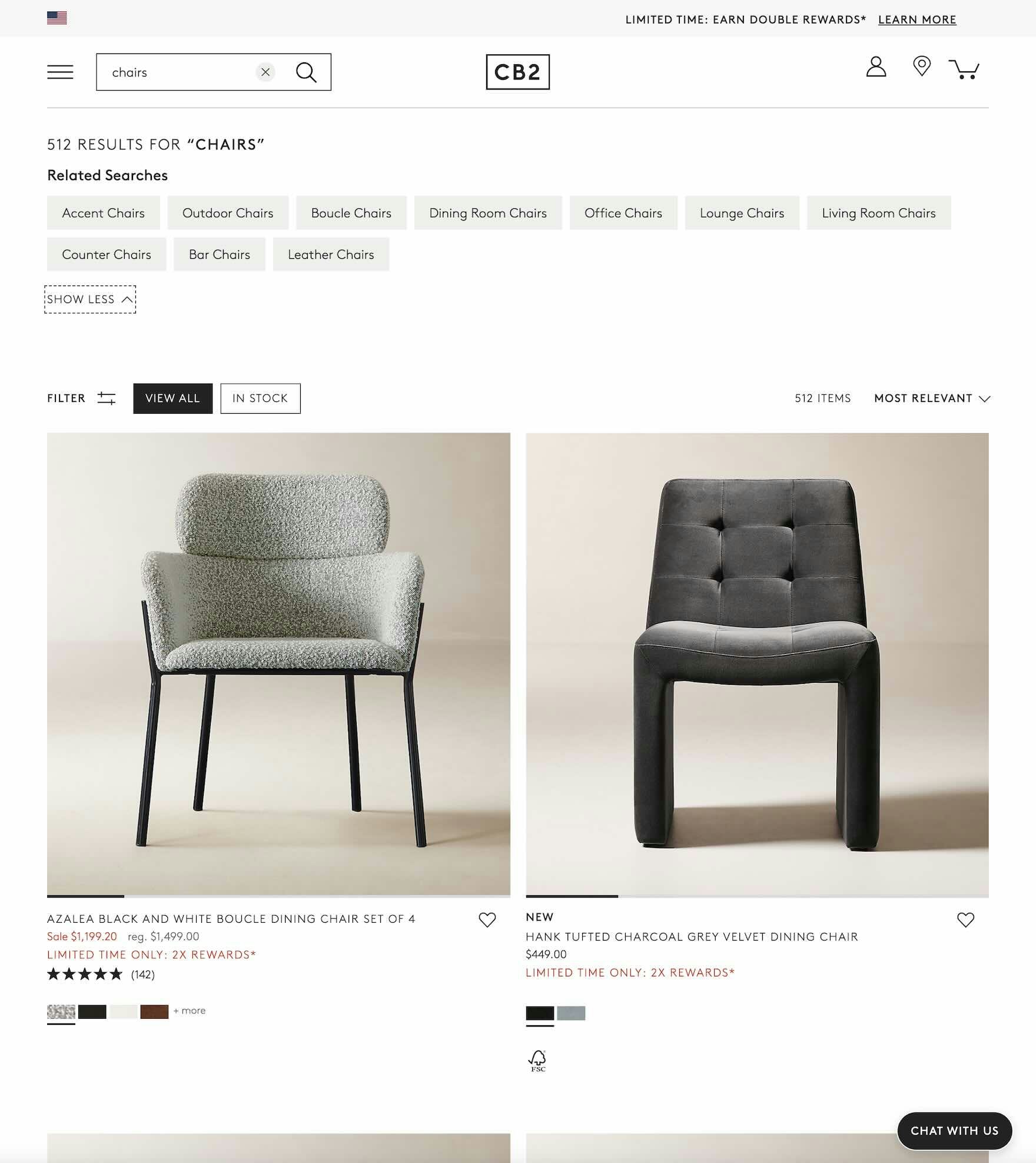
Users who enter a “Product Type” search for “chairs” at CB2 receive a search results page instead of a category page, but it includes helpful “Related Searches” that will narrow down the list of 522 items to a specific category of chairs, and no irrelevant items appear in the list.
Lastly, as “Product Type” searches are performed by users who are looking to browse a whole category of products, it’s also crucial that such queries enable relevant filtering and sorting options so the user can easily narrow down the list and compare products.
Ideally, such filters and sorting options are available directly from the search results (via category-specific search filters; see guideline #376 for more on this), although an acceptable alternative is to guide users towards a relevant category scope.
Thus, supporting the “Product Type” query is another missed opportunity for ecommerce sites and should always be one of the first things considered in any ecommerce Search UX improvement project.
3) “Feature” Searches (39% of Sites Have Issues)


A search using both capacity and style of refrigerator at Home Depot returns 0 products (first image), even though product type and capacity filters exist on the site and 45 products match those attributes (second image). Users are left to wonder if the products are carried online at this site and must decide whether to spend more time to find that out.
“Feature” searches are queries that include one or more product attributes within the search phrase.
For example, a user may not want just any “jacket” but instead be looking for something more specific, such as a “leather jacket”.
“Features” can include a wide range of product attributes, such as the following:
- Color (e.g., “red dresses”)
- Material (e.g., “fabric sofas”)
- Size (e.g., “size 8 sneakers”)
- Specs (e.g., “100000 IOPS hard drive”)
- Format (e.g., “Hobbit book”)
- Price (e.g., “$100–$200 backpacks”)
- Brand (e.g., “Revlon lipstick”)
The list goes on, and all significant product attributes should be searchable, even if they don’t exist on every product sold on the site (see guideline #340).
Meaning, even if not all products on the site have a “format” attribute, users should still be able to search for movies or books by format.
“Feature” queries are nearly always used as a qualifier for another search type — a way to filter or narrow the results of a certain search.
For example, the user may perform a “Product Type” search and then combine it with a feature-based word or phrase to yield the desired subset of products (e.g., “volumizing paraben-free shampoo” or “blue breathable North Face jacket”).
During our testing, participants also combined “Feature” searches with “Thematic”, “Symptom”, and “Compatibility” queries.
Users are now largely accustomed to the robust features of major web and social media search engines and their almost uncanny ability to intelligently interpret and yield relevant results to complex search queries — and they now expect the same from ecommerce search.
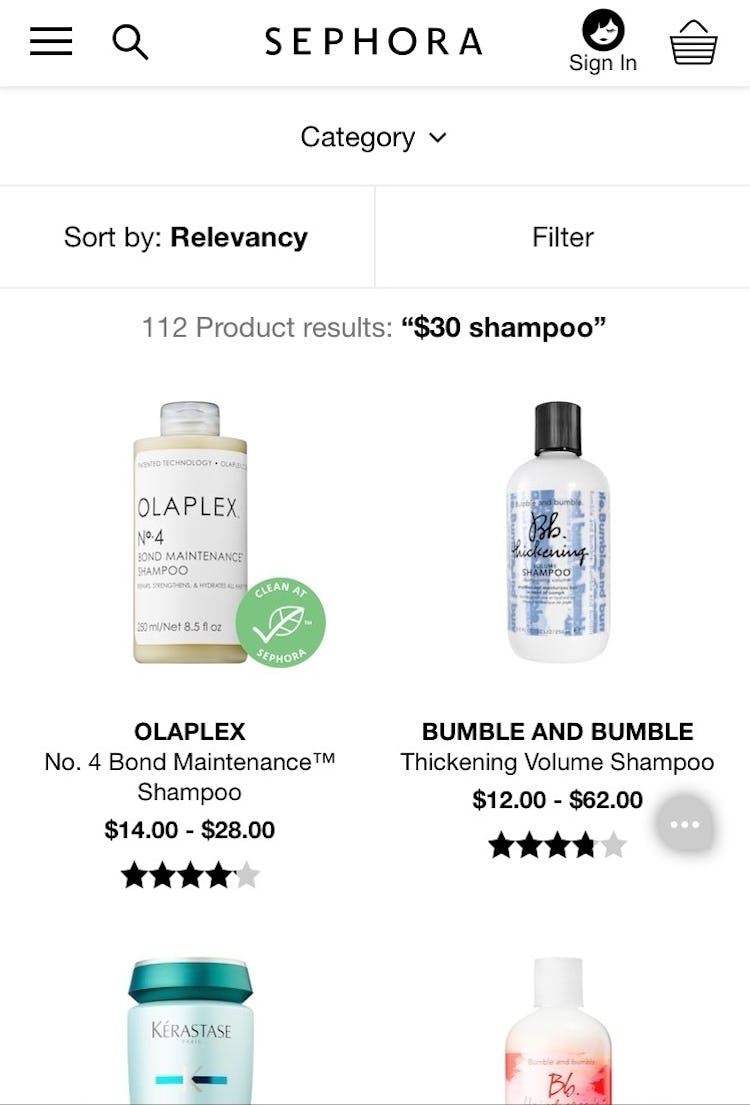
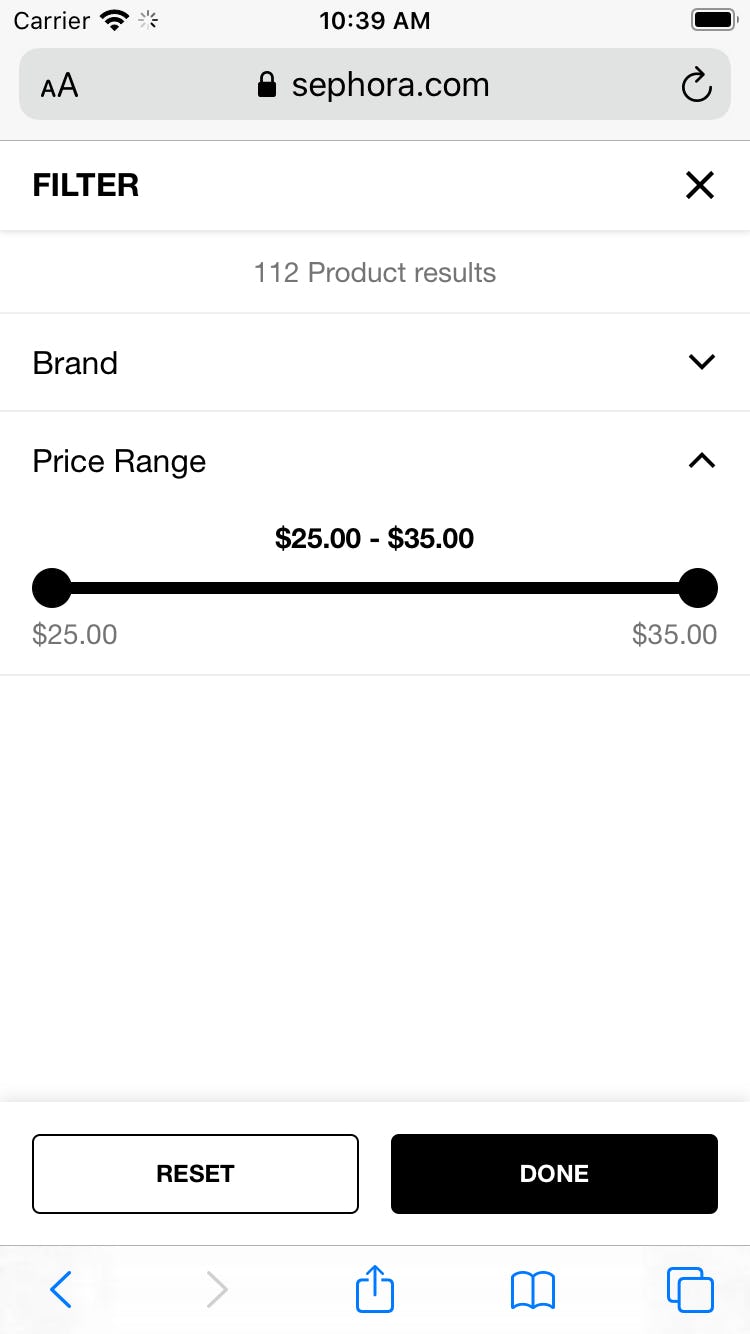
On Sephora, a search for “$30 shampoo” automatically applies a ”$25.00–$35.00” price range filter to the search results. Applying an ever-so-slightly relaxed price range is sensible as the $30 figure can arguably be interpreted as a price ballpark — a user asking for shampoos that cost $30 will likely consider a shampoo that costs $29.50 or $30.50 to be a good match.
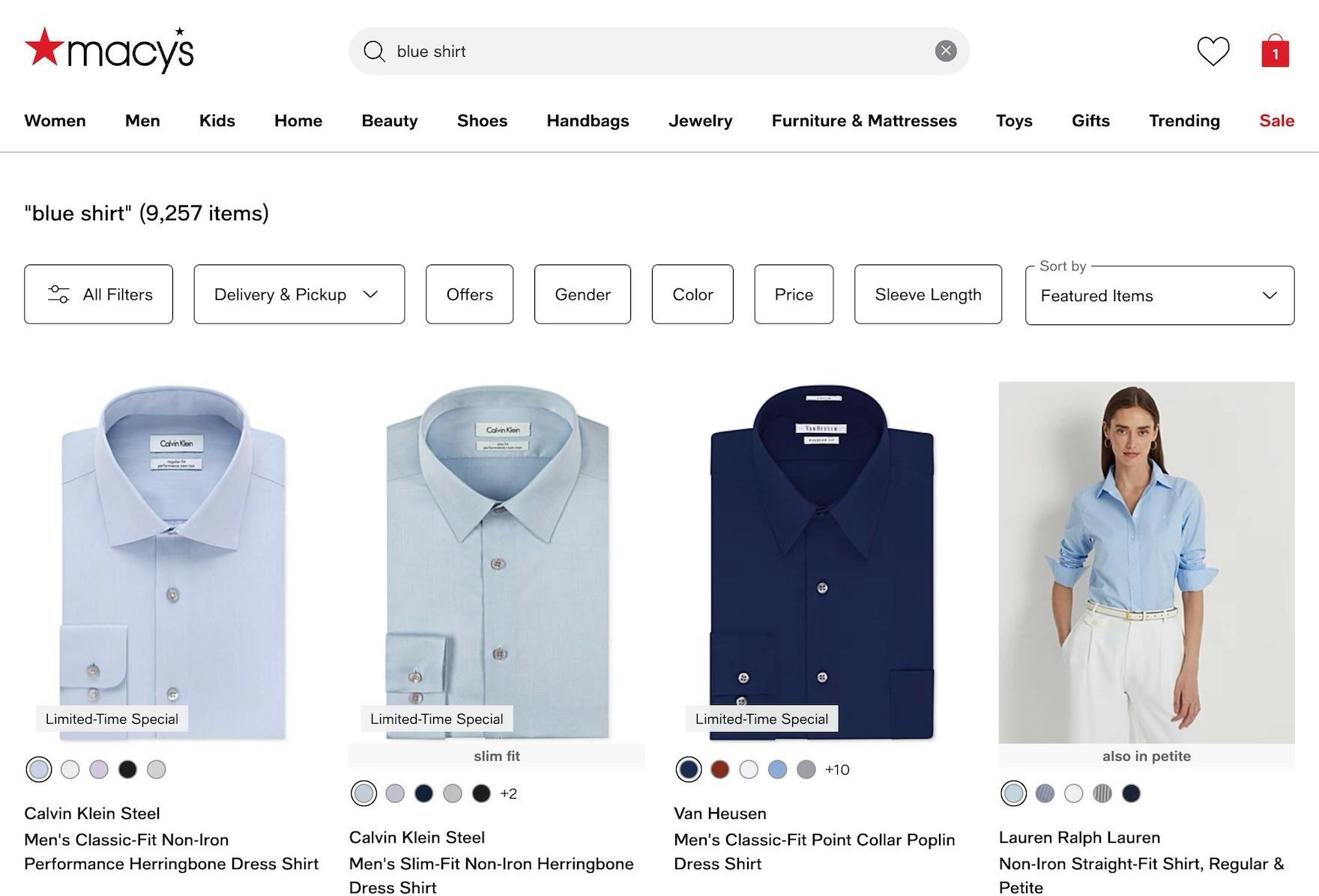
A search for a “blue shirt” at Macy's returns shirts with the blue color filter preapplied, allowing users to quickly browse the most relevant products.
In terms of implementation, the ideal solution is to dynamically apply any features searched for as filters on the results page (if a filtering value for the feature exists).
This increases transparency and user control — with the user being able to see what is and isn’t included and being able to quickly toggle related filters on or off.
For instance, in the above Macy’s example, the “blue” aspect of the “blue shirt” query is applied as a color filter, which the user can see and then also decide whether to select other available colors of shirts.
Unsurprisingly, sites with poor support for “Feature” searches are even more likely to be perceived negatively by users given the relatively wide support for feature-based queries in ecommerce.
4) “Use Case” Searches (43% of Sites Have Issues)

Users searching at Target for a “wedding gift” get redirected to the site’s Wedding registry page, leaving them no way to search the site for products that might be appropriate for this occasion.
“Use Case” searches often don’t align exactly with product types or features.
Instead, they describe how, where, and when the product will be used — “party dress”, “bedroom furniture”, and “gaming laptop” are all examples of “Use Case” queries (see guideline #2700).
Generally, users trying “Use Case” searches are often unfamiliar with a site’s catalog and are looking to quickly hone in on a product that meets a specific need (similar to “Symptom” searches).
Examples of this type of search query include searching for products by:
- Locations used (e.g., “living room furniture”)
- Seasonal or environmental conditions (e.g., “spring jacket”, “cold weather sleeping bag”)
- Occasions and events (e.g., “wedding gift”)
- Activities (“gaming chair”, “football shorts”)
Ambiguity aside, these concepts are very real attributes to users who — in certain ecommerce industries such as Apparel and Furniture and Home Decor — include “Use Case” searches liberally in their shopping.


At Hamleys, a search for “Outdoor toys” returns products that could be used outdoors, such as binoculars (first image) and a toy metal detector (second image).
Obviously, a great deal of interpretation is required to support “Use Case” searches, both in terms of the meaning of the actual query itself and in the internal tagging of products.
Indeed, it’s vital that a search for an item — for example, “spring jacket” — presents all the relevant products and not just the handful of products that happen to have those keywords in their title or description.
This will often require some sort of use case tagging of the product catalog to determine, for example, which jackets would be suitable for spring (and which wouldn’t).
Thus, similar to “Feature” searches, the ideal support for most “Use Case” queries is often achieved by having the attributes act as actual filtering values that are then preapplied when users search by them.
This gives users direct insight into how the site has interpreted their “Use Case” search and provides an easy way for users to narrow or broaden the qualifying attributes; as a bonus, this tends to improve the general navigation-based filtering experience greatly.
Similar mappings may be necessary for abstract searches such as “macbook power” (an actual search query one of the participants in our testing submitted when looking for a power adapter for his MacBook Pro laptop).
Because users are relying on their mental models of the use case when typing into the search field, their product exploration is disrupted when results don’t meet their expectations — forcing users to refactor their search terms and try again.
If “Use Case” searches aren’t supported, users leveraging this search query type are left with absent, few, or irrelevant results, which can give the impression that the products sought simply aren’t available at the site.
5) “Abbreviation and Symbol” Searches (54% of Sites Have Issues)


At Staples, users get different results if they query for “television” instead of “tv”, and if they use the “ symbol instead of “inch”.
Users rely on a wide range of linguistic shortcuts when they search.
Our testing has surfaced users frequently relying on the use of “Abbreviation and Symbol” searches, which can include abbreviations as with “13in laptop sleeve” and symbols such as “sleeping bag -5 degrees” (see guideline #344).
Between the two, abbreviations are by far the easiest to support technically as it essentially just requires mapping together the different terms; for example, “mm” pairs up with “millimeters” and “HP” with “Hewlett-Packard”.
Symbols can prove a little tricker as they may have different meanings based on their context of use and order in the search query.
For example, the “-” symbol could be used to denote either a minus sign (e.g., “sleeping bag for -10 deg.”) or a range (e.g., “sweaters $50-$100”), depending on context.
In these instances, not only does the meaning of the symbol change, but the symbol also acts as a filtering instruction to narrow down the results list.
Also consider, users often copy-paste product information from various sources during activities like research and comparison shopping and these words often include symbols (e.g., “Men’s Levi’s® 511™ Slim-Fit Stretch Jeans”).
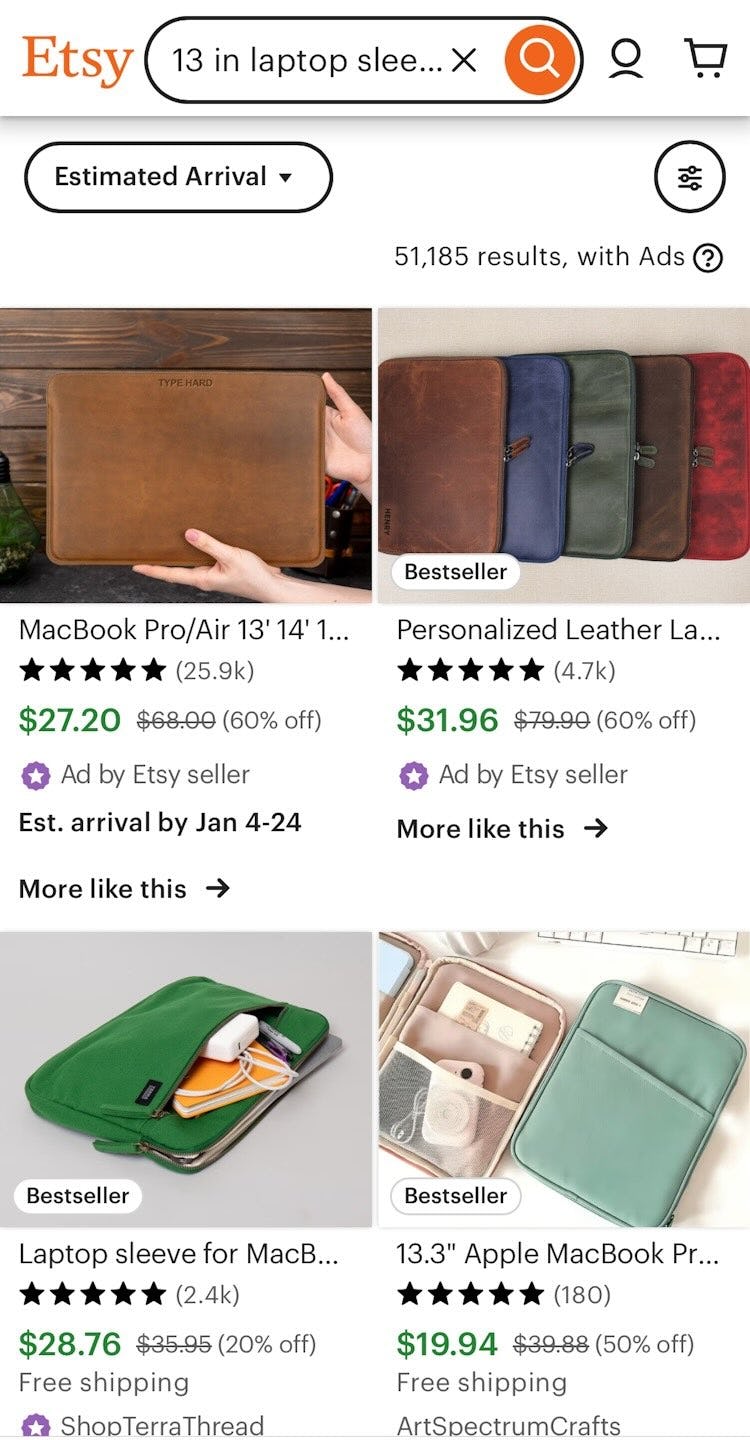


When abbreviations, symbols, and their fully spelled versions are mapped to produce the same results, users are unlikely to miss out on products the site carries. Etsy illustrates this search logic as it returns relevant and similar products for “13 in laptop sleeve”, “13” laptop sleeve”, and “13 inch laptop sleeve”.
It’s important that the search logic can properly interpret these types of alternatives to fully typed words when generating results — or risk giving users the perception that a product simply isn’t available if it doesn’t appear at or near the top of search results.
6) “Compatibility” Searches (44% of Sites Have Issues)
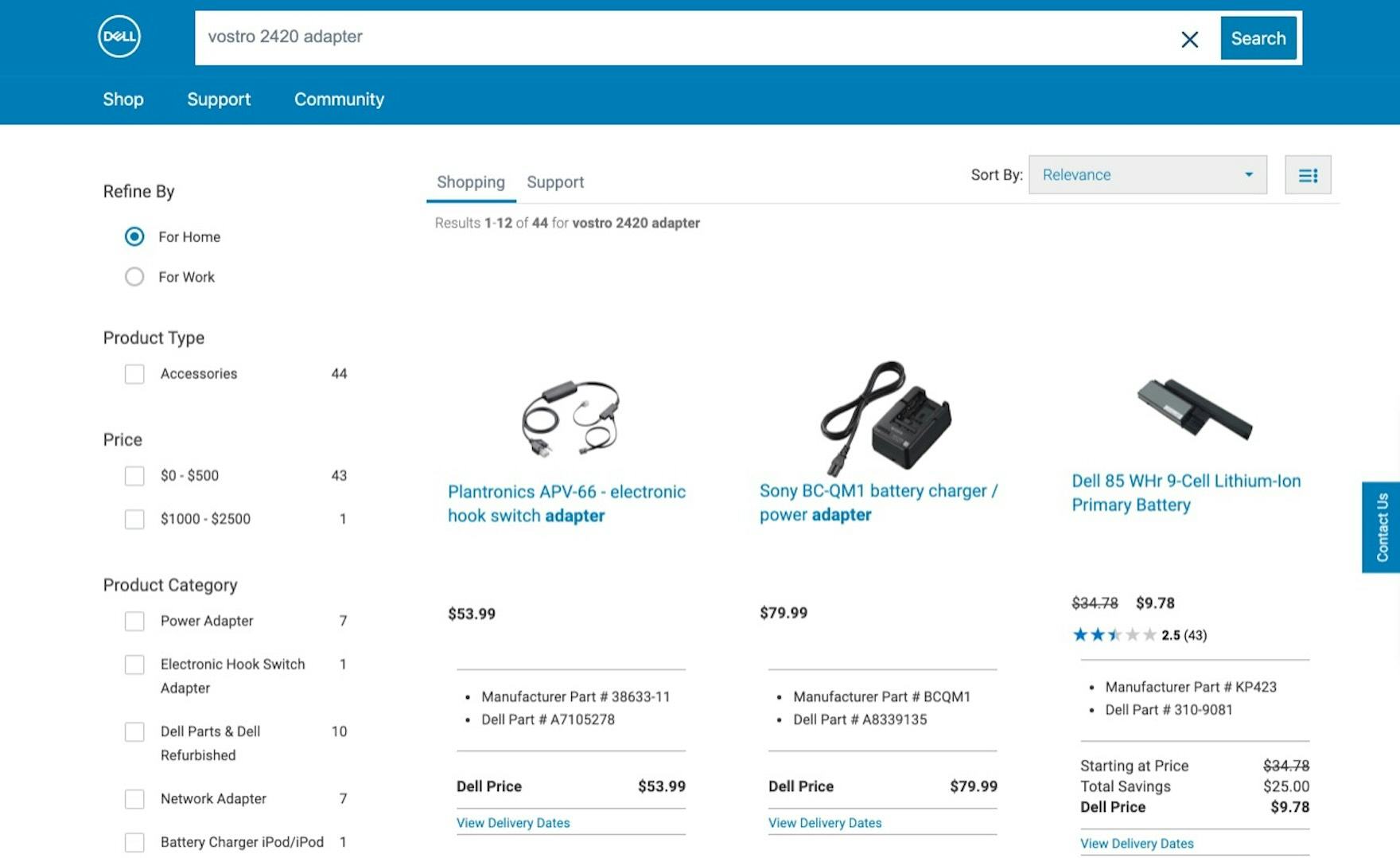
A search at Dell for “Vostro 2420 adapter” displays irrelevant products at the top of the results (a handset adapter, a camera adapter, and an incompatible battery). Moreover, users have no clear way to identify appropriate products in the list since compatibility details are excluded, meaning that users must click into each product page to determine compatibility and relevance.
Users often don’t know the name of the accessory or spare part they need — instead they know the details of the product they already own.
Therefore, it’s not uncommon to see users perform searches for compatible items, inputting the name or brand of a product they own along with the type of accessory or spare part they seek, such as “Sony RX100 camera case” (see guideline #341)
“Compatibility” searches require strict compliance — it’s two or more products that must work together.
As such, they’re typically generated as follows:
- By combining the brand name and specific model or series of the primary product (e.g., “Dell XPS 13 Touch Laptop”) along with an accessory type (e.g., “adapters”)
- By combining the brand name and “Product Type” of the primary product (e.g., “dell laptop”) along with an accessory type (e.g., “screen protector”)
- By using only the primary product name (e.g., “macbook pro”) and expecting to find supported accessories among the results
- By using only the accessory or part name (e.g., “laptop adapter” or “vacuum cleaner belt”)
Users who know the exact model of their product will often include it to search for compatible accessories, and “Compatibility” searches should logically work with product models; in fact, sometimes compatibility can only be ensured if the exact product model is provided.
However, users don’t always know or recall their specific product model, and therefore support for more generic product types and brand names is important as well.
For example, users often submit generic queries like “13in laptop sleeve” rather than specifying the exact laptop they own.


It’s useful to note that some users deliberately exclude the accessory type in their search and only search for the product they own, as they expect accessory products will be available next to the product.
On the other hand, other users simply forget to include the accessory product type.
In both cases, displaying an option to see accessory products for this type of search will prove incredibly useful, as it gives users a way to quickly access products compatible with the product they already own.
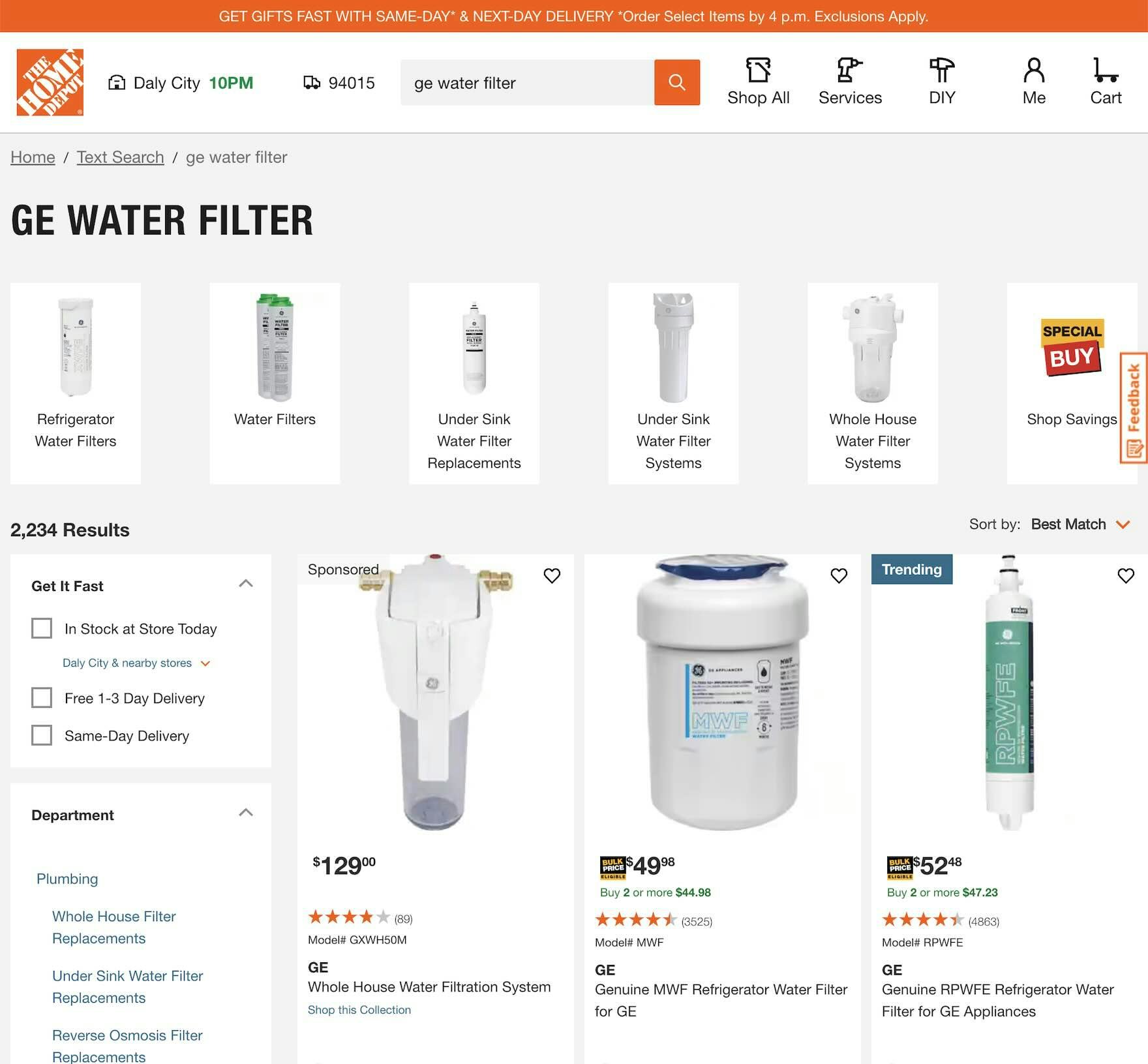
A user shopping for “ge water filter” at Home Depot can quickly use the promoted subcategories to narrow the large list to a more specific product type, while also viewing relevant GE items on the search results page.
Given that compatibility relationships can be complex and have numerous dependencies, they can be difficult to identify and parse from the queries submitted in the search field.
It may be a good idea to consider integrating “Compatibility” searches with any product finders or wizards available on the site.
For example, if a “Compatibility” search is detected for “Dell laptop adapter”, it could send the user to a “Laptop Adapter” wizard, ideally with “Dell laptop” preapplied.
Or, a wizard could be displayed as an option among any autocomplete suggestions or displayed on the search results page.
7) “Symptom” Searches (37% of Sites Have Issues)


Symptom-led searches like “Sore throat” at Vitamin World and “Oil leak” at CarParts.com return irrelevant results right at the top of large product lists, making it hard for users to know whether relevant products exist on the site that target these concerns. When this occurs, some users will choose to abandon the site rather than refine their search or browse the list.
As we’ve seen thus far, when users know the specific product they are looking for, they often use “Exact” searches, and if they don’t know the exact product or aren’t sure which one they want, they will frequently search by “Product Type”.
However, sometimes users don’t even know what type of product they need — all they can describe is the problem they are experiencing and want to explore solutions for it.
In these cases, they will rely on “Symptom” searches: entering search terms describing the problem, such as “stained rug” or “dry cough”, in hopes of finding products that solve those concerns (see guideline #338).
“Symptom” searches are important because they are often the user’s last recourse: if users don’t know what solution to browse for and a query for products by problem or symptom fails, it’s going to be almost impossible for them to find relevant products on the site.
Or, as one participant during testing reasoned, “You must be able to search on anything. I’m used to that from Google”.
This is especially true if the site’s categories aren’t problem- or symptom-based (which they often aren’t).
Furthermore, “Symptom” queries often result in multiple different types of products that target the problem, making it both difficult and inconvenient for users to find the best solution for them if the “Symptom” search query type isn’t supported.
For example, a symptom search for “knee pain” at a sports equipment site should provide users with an array of product types such as knee pads, knee sleeves, supporting socks, pain-relieving products, sports tape, and shock-absorbing shoe insoles.
Teams that want to support a more complete range of symptom- and problem-led queries can find inspiration by mining search logs and visiting relevant physical stores to speak with in-store experts, as shoppers in physical stores will often use the same language to describe their concerns as they would online.
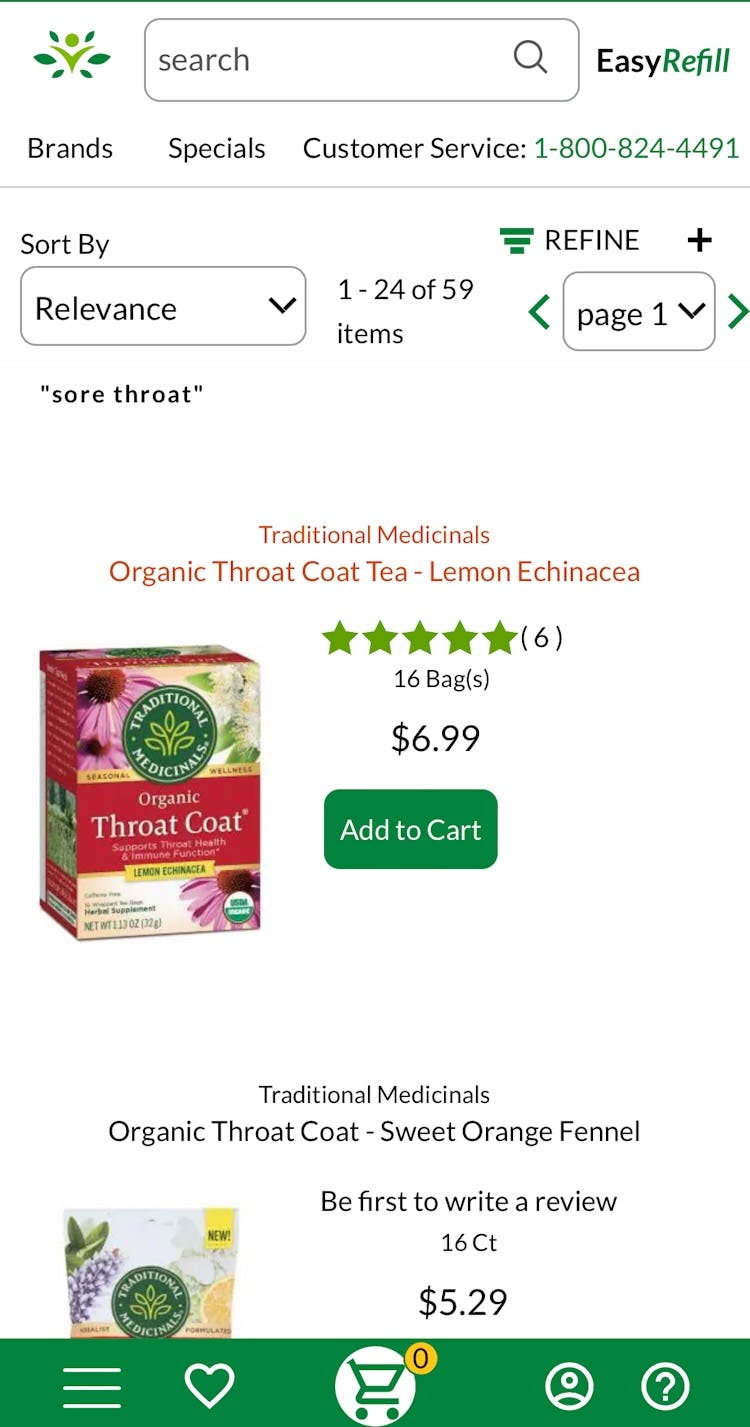

At Swanson Vitamins, searching for “sore throat” yields a variety of product types targeting this symptom, such as tea and lozenges. And Walmart users hoping to find products that will work for a “Stained carpet” can similarly explore a variety of product options.

At Chemist Direct, placeholder text in the search feature suggests users ”Search by product, brand or condition” — encouraging users to search by condition (or symptom) and reassuring them that such queries will be supported.
For sites where Symptom searches are particularly important, it’s often a good idea to suggest its usage in the prompt text of the search field to let users know that they can search by symptom (as not all users think to query by symptom).
Users can also be guided while forming their search query with the help of scope suggestions, a key component of autocomplete UX.
Scope suggestions are a good complement to “Symptom” searches because they begin to reveal hints at possible solutions (i.e., categories) that can help guide users to a related path.
Integrating or interlinking any help or buying guides available on the site directly on the search results page is essential, too, so that users can learn more about the differences between the available solutions.
Although “Symptom” searches won’t apply to every ecommerce industry, they are vital to many, such as drugstores, health and beauty, tools and hardware supplies, cleaning and housekeeping, specialty electronics, and B2B.
Still, on many sites, searching for a symptom like “knee pain” will primarily return any products related to the keyword “knee” and predominantly show irrelevant knee-related products first.
The actual solutions to the “knee pain” symptom are then scattered throughout the following hundreds of partial matches — in practice rendering it extraordinarily difficult for users to get an overview of their relevant options.
8) “Non-Product” Searches (66% of Sites Have Issues)

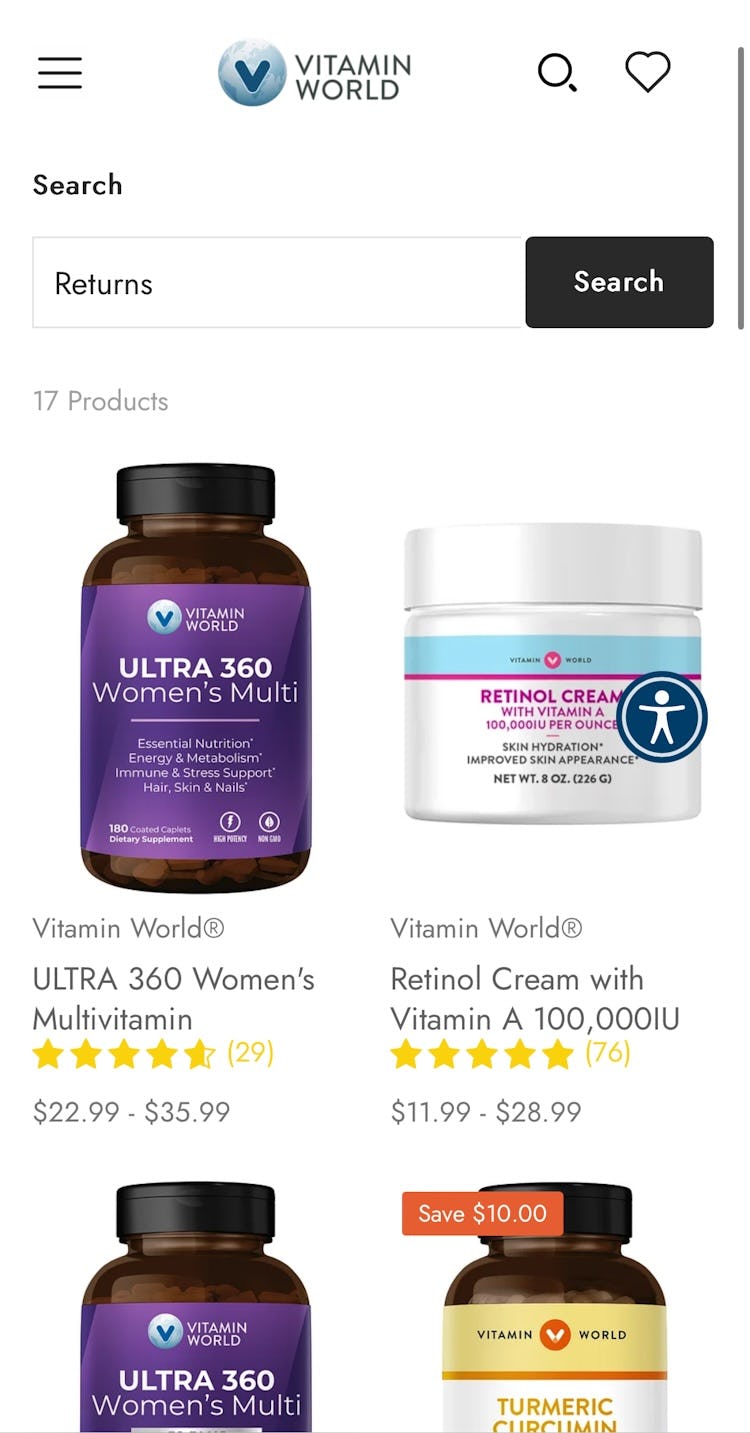
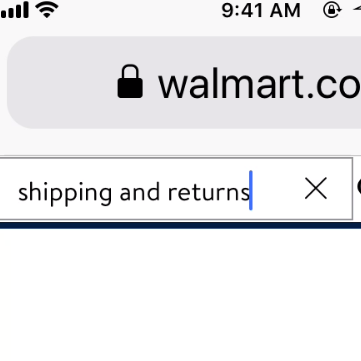
Users searching for information on the site’s return policy at Tesco and Vitamin World are presented with irrelevant results that list products instead, forcing them to browse the site in hopes of finding information crucial to their buying decision.
“Non-Product” queries are when users search for something that isn’t a product, such as the return policy or shipping information, and not finding it led some participants in testing to abandon the site (see guideline #342).
While the primary function of search in an ecommerce context is obviously to find relevant products, the search engine shouldn’t be limited to just searching the product catalog, as we consistently observe that users expect the search field to search the entire website for content hosted there.
After all, that is typically what a search field does on any other non–ecommerce website.
Indeed, during our Accounts & Self-Service usability testing 34% of participants used the search field to look for non-product content (e.g., “return policy”, “unsubscribe”, and “cancel my order”).

Searching for “return policy” on Amazon yields “Returns Center” links, as well as a short description of the return policy along with a set of links to relevant Help sections.
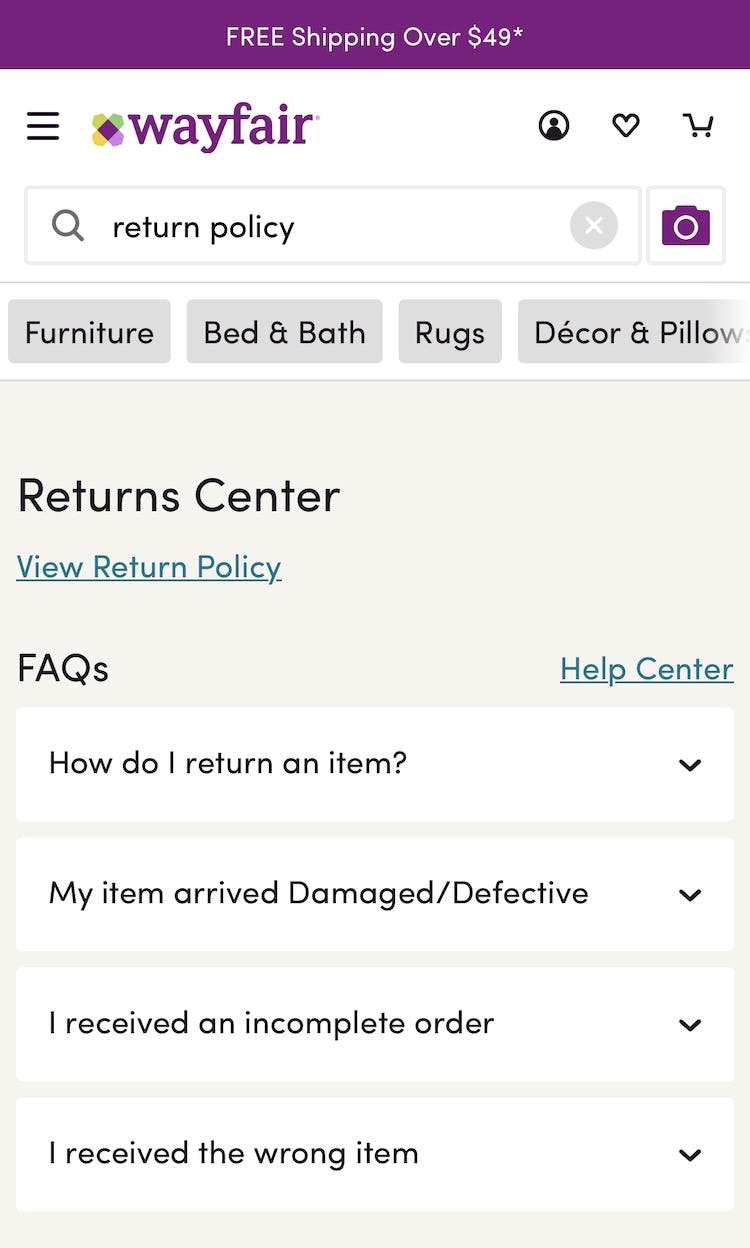
At Wayfair, a search for “return policy” directs users to the “Returns Center” where numerous return-related FAQs are available.
During testing, users often searched for this type of auxiliary content when they had difficulties finding it where expected, be it navigation menus, footers, product pages, etc.
As this auxiliary content is logically considered secondary to the product categories, links to it tend to be relegated to the page footer or nested deep within help sections.
On mobile, finding “Non-Product” content via on-page links or navigation can be even more challenging as these topics are often even harder to find compared to desktop sites.
Support Users’ Product Finding by Improving Search UX
As it stands in 2026, most users on a given ecommerce site will at some point have significant issues using a site’s search feature.
While some users will muddle their way through to the product they’re looking for, many won’t — leading directly to their abandonment of the site and a lost sale.
Indeed, our testing has captured thousands of instances of search features failing to help participants find what they were looking for (“They don’t seem to have it”) — despite the product being available.
When ecommerce sites with billions of dollars in revenue show this mediocre level of support for Search UX — and in particular for the essential query types discussed above — it’s clear that the current state of ecommerce Search UX is still problematic.
The good news is that this also means there is plenty of opportunity to rise above the competition.
Granted, this is not done overnight and often requires more than “simply” investing in good ecommerce search logic — detailed and structured product data is often just as important.
Yet getting started by implementing the 8 Search UX best practices described above will set your site on course to improving the ecommerce Search UX.
This article presents the research findings from just a few of the 700+ UX guidelines in Baymard – get full access to learn how to create a “State of the Art” ecommerce user experience.
If you want to know how your desktop site, mobile site, or app performs and compares, then learn more about getting Baymard to conduct a UX Audit of your site or app.